Scope: Repositories live in GitHub (Enterprise); Boards and Pipelines live in Azure DevOps.
This document explains every moving part—identities, tokens, webhooks, and apps—that make the integration work.
Often times, I see a lot of people struggle to comprehend the GitHub and Azure DevOps integrations- how the identities are involved, how tokens are managed and what is the best way to integrate them etc. Which led me writing this article to shed some light into the under-the-hood matter.
Table of Contents
- Architecture Overview
- Service Connections — What Happens Under the Hood
- Deep Dive: GitHub App Authentication — The Full Machinery
- The “Azure Pipelines” GitHub App — Role & Internals
- Trigger Mechanism — How a Commit Becomes a Pipeline Run
- Azure Boards
AB#Linking — Multi-Org Resolution - Fact-Check: “OAuth Dance for YAML Commit, Installation Token for Pipeline Runs”
- Deep Dive: GitHub Installation Tokens (
ghs_) — The Complete Picture - References
1. Architecture Overview
When you use GitHub for source code and Azure DevOps for boards + pipelines, three integration surfaces exist:
| Surface | GitHub Side | Azure DevOps Side | Communication Channel |
|---|---|---|---|
| Pipeline ↔ Repo | GitHub App / OAuth App / Webhook | Service Connection (stores credentials) | Webhooks (GitHub → AzDO) + REST API (AzDO → GitHub) |
| Board ↔ Repo | Azure Boards GitHub App | Board project connection | Webhooks (GitHub → AzDO) |
| Status Checks | Checks API / Commit Status API | Pipeline agent reports back | REST API (AzDO → GitHub) |
There are two distinct GitHub Apps involved (often confused):
- Azure Pipelines (
github.com/apps/azure-pipelines) — for CI/CD pipeline integration. - Azure Boards (
github.com/apps/azure-boards) — for work-item linking viaAB#.
Each is installed separately and serves a different purpose.
Citation: GitHub integration overview — Azure DevOps | Microsoft Learn
2. Service Connections — What Happens Under the Hood
When you create a pipeline in Azure DevOps and select a GitHub repo, Azure DevOps must create a service connection — a secure credential store that lets the pipeline reach GitHub. There are three authentication methods, each with very different internals.
2.1 OAuth-Based Service Connection
This is the flow that happens when you click “Grant authorization” in the Azure DevOps new-pipeline wizard.
Prerequisite: Microsoft Pre-Registered an OAuth App on GitHub
This is the key detail that makes the whole flow work.
Before any user ever clicks “Grant authorization,” Microsoft’s engineering team registered an OAuth App on GitHub through the standard developer registration process (the same github.com/settings/developers → “New OAuth App” flow any developer can use). When you register an OAuth App on GitHub, GitHub issues a client_id and client_secret pair. Microsoft stores that client_secret on the Azure DevOps backend.
So GitHub’s authorization server already knows this client_id — because GitHub itself created and issued it. The OAuth App shows up as “Azure Pipelines” when you look at your authorized applications in GitHub (github.com/settings/applications). There is a separate OAuth App called “Azure Boards” for the boards integration — they are distinct apps with different client IDs.
This is standard OAuth 2.0 — the authorization server (GitHub) must have a prior registration of the client (Azure DevOps) before it will accept any authorization requests. Without this pre-registration, GitHub would reject the /login/oauth/authorize redirect with an “application not found” error.
| Detail | Value |
|---|---|
| OAuth App Name | Azure Pipelines (not “Azure DevOps” — this is the actual name as registered on GitHub) |
| Registered By | Microsoft (centrally managed) |
| Registered On | GitHub’s OAuth App registry |
client_id |
0d4949be3b947c3ce4a5 — issued by GitHub, hardcoded in Azure DevOps backend |
client_secret |
Issued by GitHub, stored encrypted on Azure DevOps servers (never exposed to users) |
| Callback URL | Points back to Azure DevOps (e.g., https://dev.azure.com:443/{org}/{projectId}/_admin/_services/callback/github) |
| Visible To Users | Yes — appears in github.com/settings/applications → “Authorized OAuth Apps” as “Azure Pipelines” after consent |
| Management URL | github.com/settings/connections/applications/0d4949be3b947c3ce4a5 |
Citation proving client ID ownership: The official Microsoft documentation at
MicrosoftDocs/azure-devops-docs/docs/pipelines/repos/github.mdexplicitly references this client ID four times, each time directing users to manage the Azure Pipelines OAuth App permissions athttps://github.com/settings/connections/applications/0d4949be3b947c3ce4a5. The rendered version is at Build GitHub repositories — Azure Pipelines | Microsoft Learn.
Note: There is a separate OAuth App called “Azure Boards” also registered by Microsoft on GitHub — that one handles the boards/work-item integration. They are two distinct OAuth Apps with different client IDs.
Real-World Proof: Captured OAuth Redirect
When you create a pipeline in Azure DevOps and choose “Grant authorization,” your browser is redirected to a URL like this (captured from a live session):
https://github.com/login/oauth/authorize
  ?client_id=0d4949be3b947c3ce4a5
  &scope=repo,read:user,user:email,admin:repo_hook
  &state=<double-URL-encoded JSON>
The state parameter, when double-URL-decoded, reveals a JSON object that Azure DevOps uses to route the callback:
{
  "ConfigurationId": "9b079bb9-758f-452e-a3e8-8deed3054af2",
  "ProjectId": "489c881e-0e9a-4017-b02c-e3378584f955",
  "CallbackUri": "https://dev.azure.com:443/moim/{projectId}/_admin/_services/callback/github?redirectUrl=...&useWellKnownStrongBoxLocation=true&__RequestVerificationToken=...",
  "AuthorizationUrl": "https://github.com//login/oauth/authorize?client_id=0d4949be3b947c3ce4a5",
  "EndpointType": "github"
}
| State Field | Purpose |
|---|---|
ConfigurationId |
Unique ID for the service connection being created |
ProjectId |
The Azure DevOps project GUID |
CallbackUri |
Where GitHub sends the authorization code back to (AzDO’s callback endpoint) |
redirectUrl (nested) |
Where AzDO sends your browser after storing the token (back to the pipeline wizard UI) |
__RequestVerificationToken |
CSRF protection — AzDO validates this when the callback arrives |
EndpointType |
Tells AzDO’s callback handler this is a GitHub connection (vs. Bitbucket, GitLab, etc.) |
The four OAuth scopes requested tell you exactly what Azure DevOps needs:
| Scope | What It Grants |
|---|---|
repo |
Full read/write access to all repos the user can access (clone source, read YAML) |
read:user |
Read the user’s GitHub profile information |
user:email |
Read the user’s email addresses (used to match identity across systems) |
admin:repo_hook |
Create and delete webhooks on repositories (needed for pipeline triggers) |
Citation: Authorizing OAuth Apps — GitHub Docs
Step-by-step internal flow:
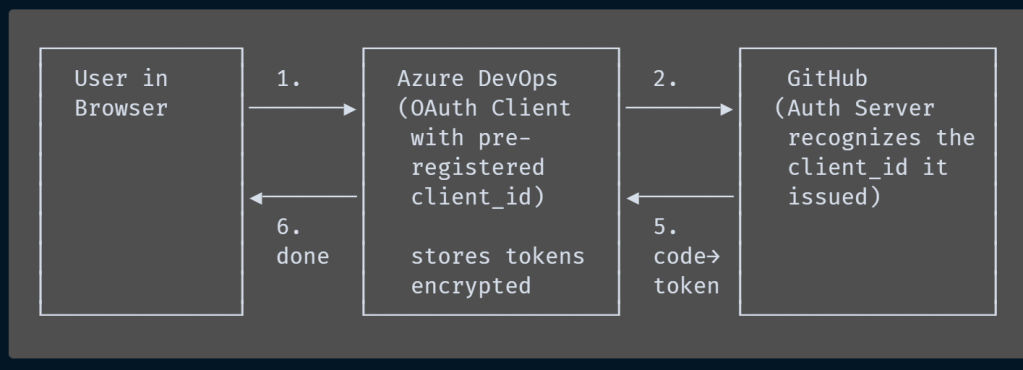
- Redirect to GitHub: Azure DevOps redirects your browser to
github.com/login/oauth/authorizewith the pre-registeredclient_idthat GitHub itself issued to Microsoft. GitHub looks up thisclient_idin its OAuth App registry, finds the “Azure DevOps” application, and renders the consent screen showing the app name, logo, and requested permissions. - User consent: GitHub shows a consent screen. The scopes requested are:
repo— full access to private and public repositories (needed to clone source code).admin:repo_hook— ability to create/delete webhooks on repos (needed for triggers).repo:status— read/write commit status (needed to report build results).
- Authorization code returned: GitHub redirects back to Azure DevOps with a one-time authorization code.
- Token exchange: Azure DevOps server-side exchanges the authorization code for an OAuth access token (and optionally a refresh token) via
POST https://github.com/login/oauth/access_token. - Storage: The access token is encrypted at rest and stored in the Azure DevOps service connection. The token is scoped to the user who authorized it — it can access only the repos that user can access.
What the service connection object holds:
| Field | Value |
|---|---|
| Connection Type | GitHub |
| Auth Scheme | OAuth |
| OAuth Access Token | Encrypted, stored in Azure DevOps credential store |
| Refresh Token | Encrypted (if provided by GitHub; GitHub classic OAuth does not always issue refresh tokens) |
| Token Owner | The GitHub user who performed the consent |
| Scopes | repo, admin:repo_hook, repo:status |
Token lifecycle:
- GitHub classic OAuth tokens do not expire unless the user revokes them or the org admin deauthorizes the OAuth App.
- If the token is revoked, pipelines will fail silently the next time they try to use it.
- Azure DevOps does not currently auto-rotate OAuth tokens.
Citation: Build GitHub repositories — Azure Pipelines | Microsoft Learn
2.2 PAT-Based Service Connection
When you choose “Personal Access Token,” the flow is simpler but carries more operational overhead.
What happens:
- You generate a PAT in GitHub → Settings → Developer settings → Personal access tokens.
- You paste the PAT into the Azure DevOps service connection form.
- Azure DevOps stores it encrypted in its credential vault.
What the service connection holds:
| Field | Value |
|---|---|
| Connection Type | GitHub |
| Auth Scheme | Token |
| Personal Access Token | The raw PAT string, encrypted at rest |
| Token Owner | The GitHub user who created the PAT |
| Required Scopes | repo (full repo access), admin:repo_hook, read:user, user:email |
How it’s used at runtime:
When the pipeline agent needs to clone the repo, Azure DevOps injects the PAT into the git clone command as a bearer token:
The PAT is never logged — Azure DevOps masks it in pipeline output. It’s injected only for the duration of the checkout step.
Key risks:
- The PAT is tied to a single human user. If that user leaves the org, pipelines break.
- PATs have expiration dates. You must manually rotate them.
- A PAT with
reposcope grants access to every repo the user can see, not just the one in the pipeline.
Citation: Managing your personal access tokens — GitHub Docs
2.3 GitHub App-Based Service Connection (Recommended)
This is the most secure option and the one Microsoft recommends for production.
How it differs:
Instead of authenticating as a user, Azure DevOps authenticates as the Azure Pipelines GitHub App — an application identity with its own permissions, independent of any human account.
But first: How does Azure DevOps get the private key?
This is a crucial detail. The private key is NOT shared between GitHub and Azure DevOps. It uses asymmetric cryptography (RSA), where the private key and public key are a mathematically linked pair but knowing one doesn’t reveal the other.
Here’s how it works for GitHub Apps in general:
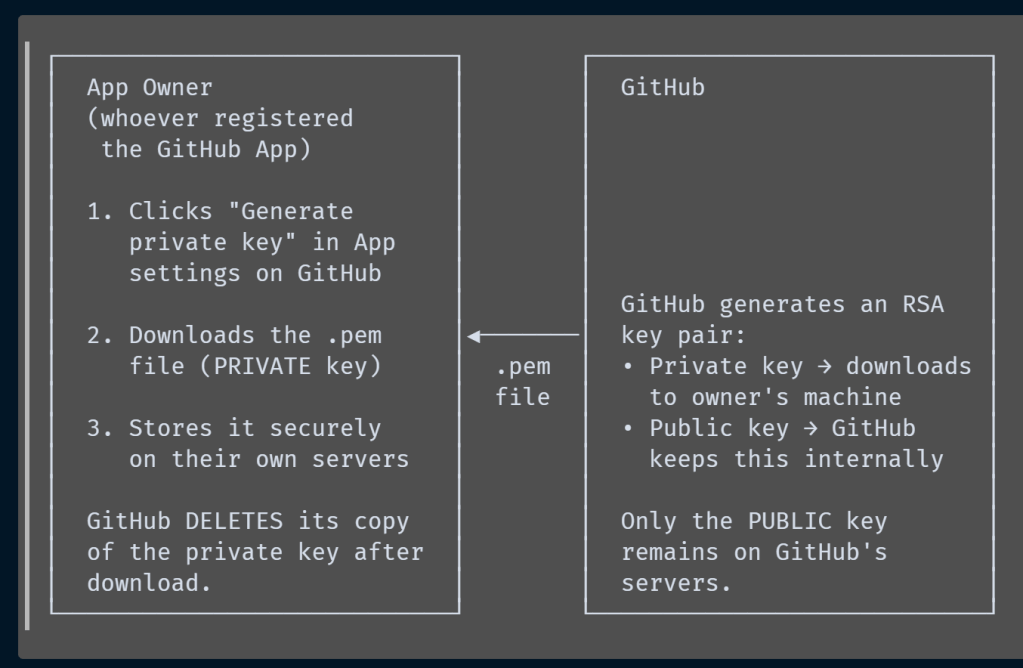
Key fact: After you download the private key
.pemfile, GitHub does not retain a copy of it. If you lose it, you must generate a new one. GitHub only keeps the public key to verify signatures.Citation: Managing private keys for GitHub Apps — GitHub Docs — “Private keys are the single most valuable secret for a GitHub App. Store them securely. Private keys do not expire but can be deleted.”
Now, who owns the Azure Pipelines GitHub App?
The Azure Pipelines GitHub App (github.com/apps/azure-pipelines) is a first-party app registered and owned by Microsoft. This means:
- Microsoft’s engineers registered the app on GitHub.
- Microsoft’s engineers clicked “Generate private key” and downloaded the
.pemfile. - Microsoft stores that private key on the Azure DevOps backend infrastructure (likely in Azure Key Vault or a comparable secrets management system).
- GitHub only has the corresponding public key.
- You (the end user) never see or touch this private key.
This is fundamentally different from a scenario where you create your own custom GitHub App for a service connection — in that case, you would generate the private key and upload it to Azure DevOps yourself.
The two scenarios compared:
| Scenario | Who owns the App? | Who generated the private key? | Where is it stored? |
|---|---|---|---|
| Built-in Azure Pipelines App | Microsoft | Microsoft | Azure DevOps backend (Microsoft-managed) |
| Custom GitHub App service connection | You | You (downloaded .pem from GitHub) |
You upload it to Azure DevOps service connection |
Internal token flow (asymmetric — no shared secrets):
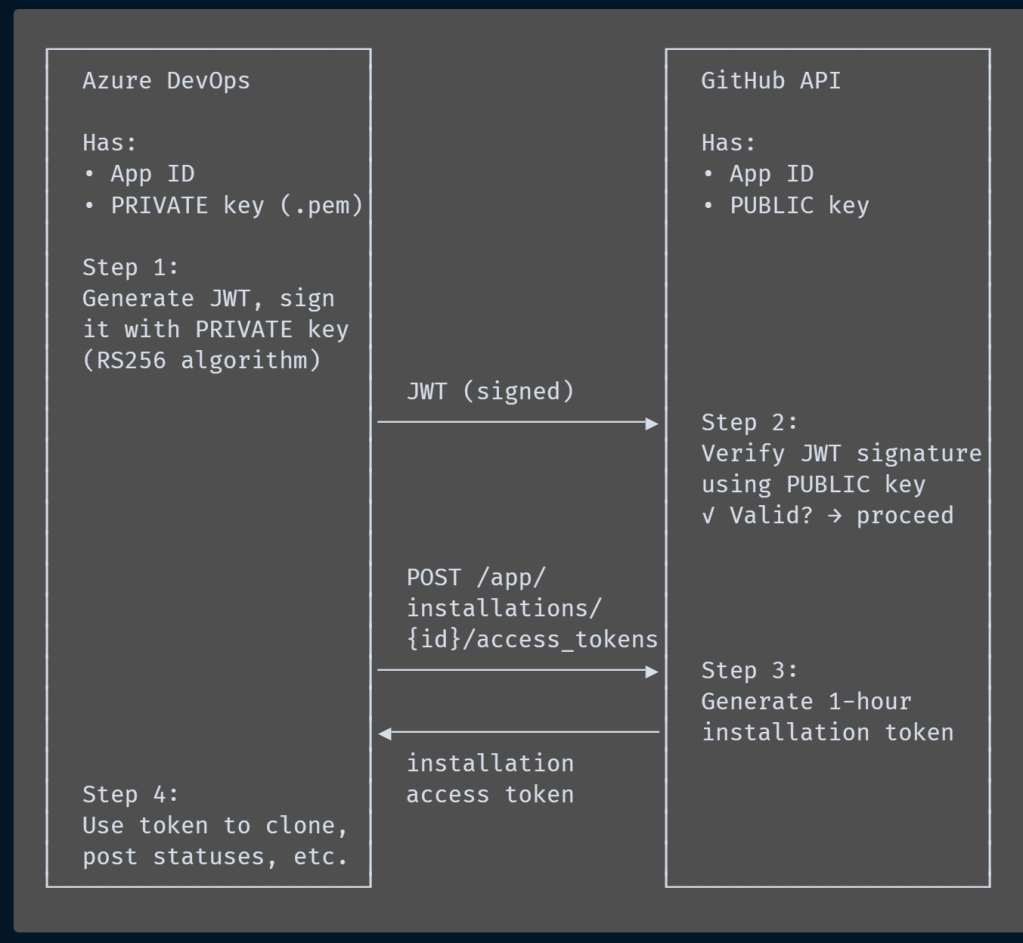
- JWT generation: Azure DevOps generates a short-lived JWT (JSON Web Token) signed with the App’s private key using the RS256 algorithm (RSA + SHA-256). The JWT contains:
iss(issuer): The App ID of the Azure Pipelines GitHub App.iat(issued at): Current time − 60 seconds (to handle clock drift).exp(expires at): Current time + 10 minutes (maximum allowed by GitHub).
- JWT verification: GitHub receives the JWT and verifies the signature using the public key it retained when the private key was generated. This proves the request genuinely came from the app owner (Microsoft), without the private key ever crossing the wire.
- Installation access token exchange: If the JWT is valid, Azure DevOps calls:
POST https://api.github.com/app/installations/{installation_id}/access_tokens Authorization: Bearer <JWT>GitHub returns a short-lived installation access token (valid for 1 hour) scoped to only the repos the App is installed on. - Usage: This installation token is used to clone code, post statuses, etc. After 1 hour it expires, and a new one is generated by repeating steps 1–3.
Why this matters: The private key never leaves Azure DevOps servers. It’s never sent to GitHub. Only the mathematical proof (the signed JWT) crosses the wire, and even that expires in 10 minutes. GitHub verifies it with the public key. This is the same asymmetric-key pattern used in TLS/HTTPS, SSH, and code signing.
What the service connection holds:
For the built-in Azure Pipelines App, the service connection is lightweight because Microsoft manages the credentials internally:
| Field | Value |
|---|---|
| Connection Type | GitHub |
| Auth Scheme | GitHubApp |
| App ID | The numeric ID of the Azure Pipelines GitHub App (managed by Microsoft) |
| Installation ID | The ID of this specific installation in your GitHub org |
| Private Key | Not stored in your service connection — it’s on Microsoft’s backend |
For a custom GitHub App service connection you create yourself:
| Field | Value |
|---|---|
| Connection Type | GitHub |
| Auth Scheme | GitHubApp |
| App ID | Your custom App’s numeric ID |
| Installation ID | Your installation ID |
| Private Key (PEM) | The .pem file you downloaded from GitHub and uploaded to Azure DevOps, encrypted at rest |
Why this is best:
- No human dependency — the credentials aren’t tied to any user account.
- Short-lived tokens — installation tokens expire in 1 hour; there’s no long-lived secret to steal.
- Asymmetric crypto — the private key never crosses the network; only signed JWTs (which expire in 10 min) are transmitted.
- Fine-grained scope — the App only has access to repos it’s explicitly installed on, not all repos the user can see.
- Survives employee departures — if the person who set it up leaves, the App keeps working.
Citations:
Managing private keys for GitHub Apps — GitHub Docs — explains private key generation, storage, and rotation.
Generating a JWT for a GitHub App — GitHub Docs — explains the RS256-signed JWT structure.
Generating an installation access token — GitHub Docs — explains the JWT→token exchange.
About authentication with a GitHub App — GitHub Docs — overview of the asymmetric authentication model.
3. Deep Dive: GitHub App Authentication — The Full Machinery
This section explains every byte-level step of how a GitHub App authenticates to the GitHub API. This is the mechanism Azure DevOps uses internally when the Azure Pipelines GitHub App is configured.
3.1 The Three Levels of GitHub App Identity
A GitHub App can authenticate at three different levels, each with different capabilities and token types:
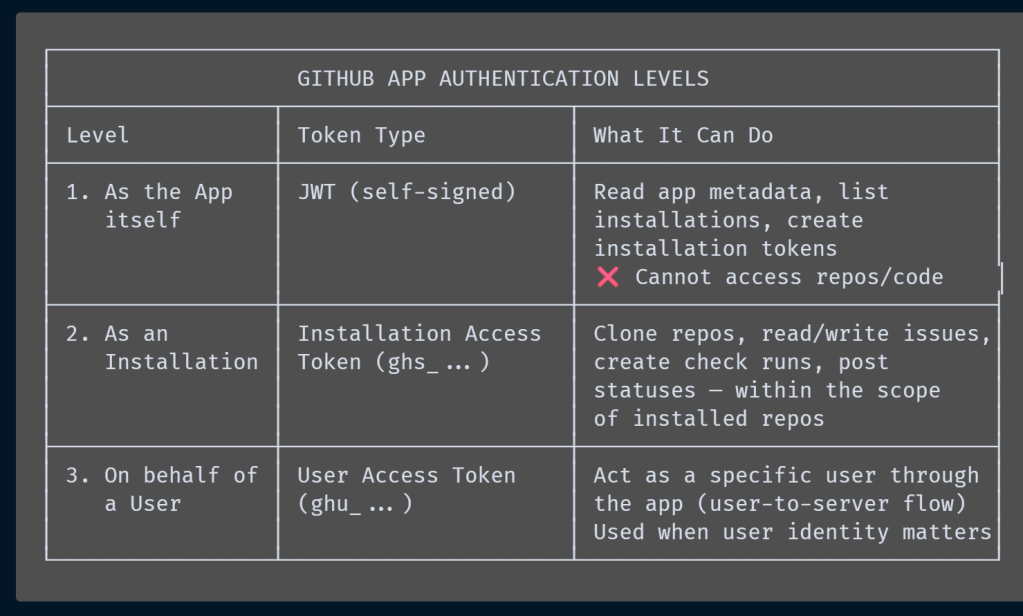
Azure Pipelines uses levels 1 and 2: It authenticates as the app (JWT) to get an installation token, then uses that installation token to interact with your repos.
Citation: About authentication with a GitHub App — GitHub Docs
3.2 GitHub Token Prefixes — How to Identify Any Token
GitHub uses identifiable prefixes on all its tokens so they can be detected by secret scanners:
| Prefix | Token Type | Example Use |
|---|---|---|
ghp_ |
Personal Access Token (classic) | Developer automation |
github_pat_ |
Fine-grained Personal Access Token | Scoped developer access |
gho_ |
OAuth Access Token | OAuth App integrations (like the Azure Pipelines OAuth flow) |
ghu_ |
GitHub App User-to-Server Token | App acting on behalf of a specific user |
ghs_ |
GitHub App Installation Token (server-to-server) | This is what Azure Pipelines uses |
ghr_ |
Refresh Token | Token renewal in OAuth/App flows |
So when Azure DevOps internally receives a token starting with ghs_, it knows this is an installation access token scoped to the installed repos.
Citation: Behind GitHub’s new authentication token formats — GitHub Blog
3.3 Step 1: Producing the JWT — Byte by Byte
A JWT consists of three parts separated by dots: HEADER.PAYLOAD.SIGNATURE, each Base64URL-encoded.
The Header
alg: RS256 — RSA signature with SHA-256 hash. This is the only algorithm GitHub accepts.typ: AlwaysJWT.
This is Base64URL-encoded to produce the first segment:
The Payload (Claims)
| Claim | Type | Value | Requirement |
|---|---|---|---|
iss |
String | The GitHub App’s numeric App ID (e.g., "12345") |
Required. Found in the App’s settings page on GitHub. |
iat |
Integer | Unix timestamp of when the JWT was issued. GitHub recommends setting this to current time − 60 seconds to account for clock drift between servers. | Required. |
exp |
Integer | Unix timestamp of when the JWT expires. Maximum 10 minutes after iat. GitHub rejects JWTs with longer expiry. |
Required. |
Important: The
issclaim must be the App ID as a string, not an integer. Some JWT libraries serialize integers differently, which can cause signature validation failures.
This is Base64URL-encoded to produce the second segment.
The Signature
The signature is computed as:
In plain English:
- Concatenate the Base64URL-encoded header and payload with a dot separator.
- Hash the result with SHA-256.
- Sign the hash with the RSA private key using PKCS#1 v1.5 padding.
- Base64URL-encode the signature.
The final JWT is: <header>.<payload>.<signature>
Code Example (Python):
import jwt       # PyJWT library
import time
import pathlib

# Load the private key (.pem file downloaded from GitHub)
private_key = pathlib.Path("app-private-key.pem").read_text()

# Build the JWT
now = int(time.time())
payload = {
    "iat": now - 60,          # Issued 60 seconds ago (clock drift buffer)
    "exp": now + (10 * 60),   # Expires in 10 minutes
    "iss": "12345"            # Your GitHub App ID (as string)
}

encoded_jwt = jwt.encode(payload, private_key, algorithm="RS256")
# Result: "eyJhbGci....<long string>....XYZ"
Citation: Generating a JSON Web Token (JWT) for a GitHub App — GitHub Docs
3.4 Step 2: Authenticating as the App (JWT → GitHub API)
With the JWT in hand, Azure DevOps can now authenticate as the app itself. This is the most limited level — it can only call app-level endpoints:
What GitHub does when it receives this request:
- Decodes the JWT header → extracts
alg: RS256. - Decodes the JWT payload → extracts
iss: "12345"(App ID). - Looks up App ID
12345in its database → finds the corresponding public key. - Verifies the signature: takes
Base64URL(header).Base64URL(payload), hashes it, and checks the signature against the public key. - Checks
exp→ if the JWT has expired, rejects with401. - Checks
iat→ if it’s too far in the future, rejects. - If all checks pass → responds with app metadata.
Response (app metadata):
{
  "id": 12345,
  "slug": "azure-pipelines",
  "name": "Azure Pipelines",
  "owner": {
    "login": "Microsoft",
    "type": "Organization"
  },
  "html_url": "https://github.com/apps/azure-pipelines",
  "created_at": "2018-09-01T00:00:00Z",
  "permissions": {
    "checks": "write",
    "contents": "read",
    "pull_requests": "write",
    "statuses": "write",
    "metadata": "read"
  }
}
What can be called with just the JWT (limited set):
| Endpoint | Purpose |
|---|---|
GET /app |
Get the App’s own metadata |
GET /app/installations |
List all organizations/accounts where the App is installed |
GET /app/installations/{id} |
Get details of a specific installation |
POST /app/installations/{id}/access_tokens |
Create an installation access token (this is the critical one) |
DELETE /app/installations/{id} |
Delete an installation |
You CANNOT clone repos, read code, create issues, or post statuses with just the JWT. You must exchange it for an installation token first.
3.5 Step 3: Getting the Installation ID
Before requesting an installation token, Azure DevOps needs to know the installation ID — a numeric identifier representing “this App installed in this specific org/account.”
Response (list of installations):
[
  {
    "id": 98765,
    "account": {
      "login": "your-github-org",
      "type": "Organization"
    },
    "app_id": 12345,
    "target_type": "Organization",
    "permissions": {
      "checks": "write",
      "contents": "read",
      "pull_requests": "write"
    },
    "repository_selection": "selected",
    "created_at": "2024-01-15T10:00:00Z"
  }
]
Key fields:
id: 98765— this is the installation ID needed for the next step.repository_selection: "selected"— means the App only has access to specifically chosen repos (not all repos in the org).
In practice, Azure DevOps already stores the installation ID in the service connection from when the App was first installed, so this step is usually skipped at runtime.
Citation: Authenticating as a GitHub App installation — GitHub Docs
3.6 Step 4: Exchanging the JWT for an Installation Access Token
This is the critical step. Azure DevOps trades the short-lived JWT for a scoped installation token:
POST https://api.github.com/app/installations/98765/access_tokens
Authorization: Bearer <JWT>
Accept: application/vnd.github+json
Content-Type: application/json

{
  "repositories": ["my-repo"],
  "permissions": {
    "contents": "read",
    "checks": "write"
  }
}
The request body is optional. If omitted, the token gets all permissions and all repos the installation has access to. If provided, it allows further scoping down — you can request fewer permissions or fewer repos than the App is installed with.
Response:
{
  "token": "ghs_ABCDEFghijklmnop1234567890xyz",
  "expires_at": "2026-03-17T09:53:00Z",
  "permissions": {
    "contents": "read",
    "checks": "write"
  },
  "repository_selection": "selected",
  "repositories": [
    {
      "id": 555,
      "name": "my-repo",
      "full_name": "your-github-org/my-repo",
      "private": true
    }
  ]
}
Critical details about this token:
| Property | Value | Meaning |
|---|---|---|
token |
ghs_ABCDEF... |
The installation access token. Prefix ghs_ = server-to-server. |
expires_at |
ISO 8601 timestamp | Exactly 1 hour from creation. Non-renewable — you must create a new one. |
permissions |
Object | The effective permissions this token has (may be a subset of the App’s full permissions). |
repository_selection |
"selected" or "all" |
Whether token can access all installed repos or just the ones listed. |
repositories |
Array | The specific repos this token can access (only when selected). |
Citation: Generating an installation access token for a GitHub App — GitHub Docs
Citation: REST API — Create an installation access token — GitHub Docs
3.7 Step 5: Using the Installation Token to Call GitHub APIs
Now Azure DevOps has a ghs_ token that can actually do things. Here’s how it’s used for the two most common pipeline operations:
Cloning source code:
The pipeline agent injects the token into the git clone command:
Or equivalently:
GitHub’s git server validates the ghs_ token against the installation’s permissions and repo access. If contents: read is granted for this repo, the clone succeeds.
Creating a check run (reporting build status):
POST https://api.github.com/repos/your-github-org/my-repo/checks
Authorization: token ghs_ABCDEFghijklmnop1234567890xyz
Accept: application/vnd.github+json
Content-Type: application/json

{
  "name": "Azure Pipelines - my-pipeline",
  "head_sha": "abc123def456...",
  "status": "in_progress",
  "details_url": "https://dev.azure.com/your-org/your-project/_build/results?buildId=789",
  "output": {
    "title": "Build in progress",
    "summary": "Pipeline 'my-pipeline' is running..."
  }
}
Later, when the build completes:
PATCH https://api.github.com/repos/your-github-org/my-repo/check-runs/{check_run_id}
Authorization: token ghs_ABCDEFghijklmnop1234567890xyz
Accept: application/vnd.github+json
Content-Type: application/json

{
  "status": "completed",
  "conclusion": "success",
  "output": {
    "title": "Build succeeded",
    "summary": "All 247 tests passed. Build completed in 3m 42s."
  }
}
This is what makes the ✅ green check appear on your commit/PR in GitHub.
Citation: Building CI checks with a GitHub App — GitHub Docs
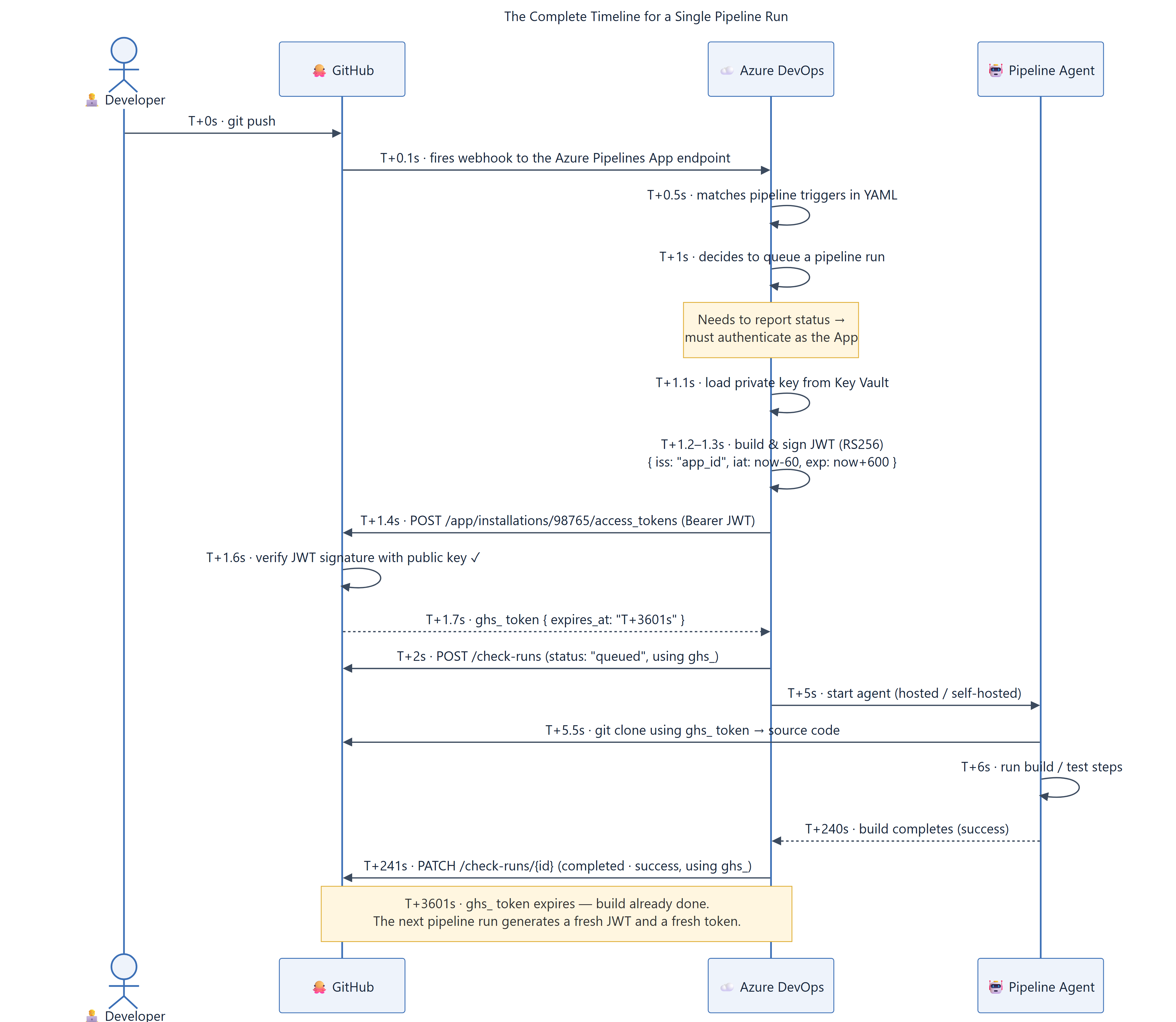
3.8 The Complete Timeline for a Single Pipeline Run
Putting it all together — here’s every authentication step that happens from trigger to completion:
3.9 Token Lifecycle Summary
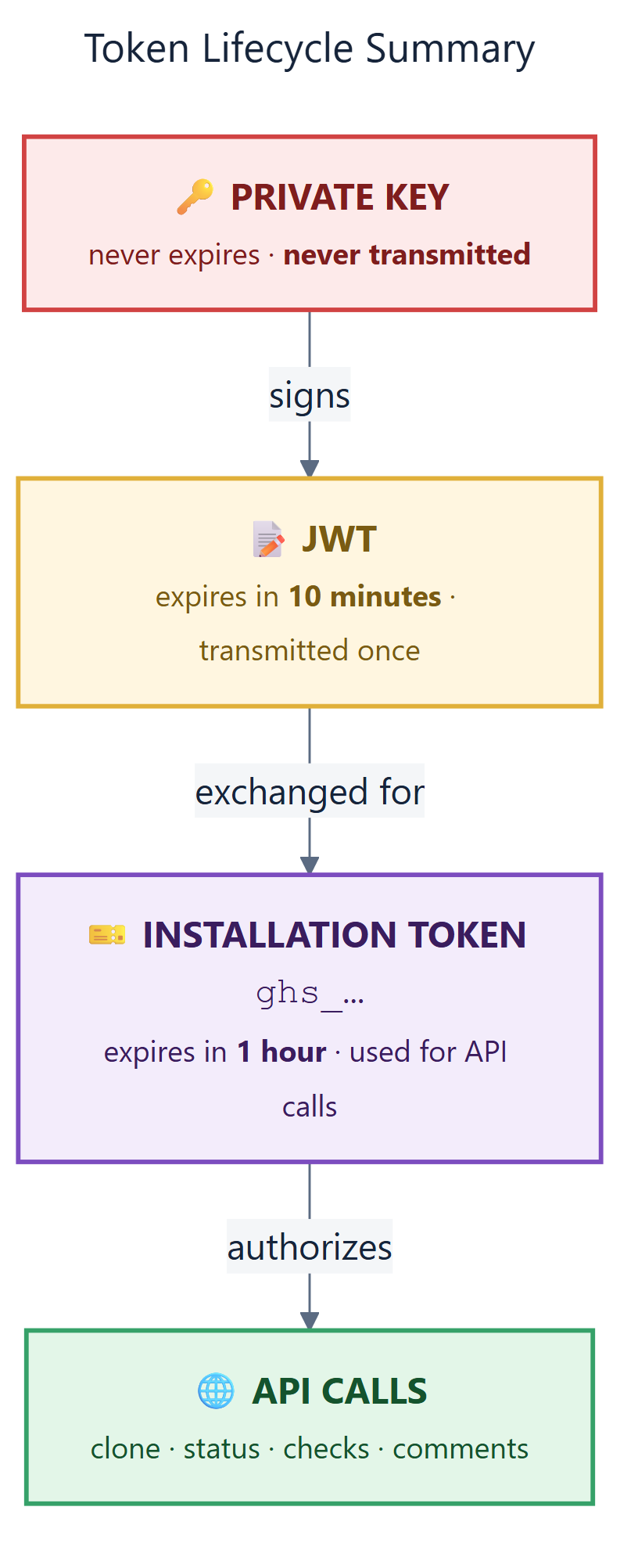
| Token | Lifetime | Where It Lives | Transmitted? |
|---|---|---|---|
| Private Key (.pem) | Indefinite (until revoked) | Azure DevOps Key Vault (Microsoft-managed) | Never |
| JWT | 10 minutes max | Generated in memory, sent once | Yes — to GitHub’s API in the Authorization header |
Installation Token (ghs_) |
1 hour | Pipeline agent memory | Yes — to GitHub’s API and git server |
Citations (all from GitHub Docs):
About authentication with a GitHub App — the three authentication levels.
Generating a JWT for a GitHub App — JWT structure, claims, RS256 signing.
Managing private keys for GitHub Apps — key generation, storage, rotation.
Generating an installation access token — the token exchange API.
Authenticating to the REST API — which endpoints accept which token types.
Behind GitHub’s new authentication token formats — theghs_,ghp_,gho_prefix system.
Building CI checks with a GitHub App — creating check runs with an installation token.
4. The “Azure Pipelines” GitHub App — Role & Internals
4.1 What Is It?
The Azure Pipelines app (https://github.com/apps/azure-pipelines) is a first-party GitHub App published by Microsoft. It’s listed on the GitHub Marketplace and is free.
It is not a GitHub Action — it is a GitHub App, which is a fundamentally different integration mechanism. A GitHub App is an application with its own identity, its own permissions, and its own webhook subscriptions.
4.2 What It Does (Comprehensive List)
| Capability | How |
|---|---|
| Triggers pipeline runs | Subscribes to push, pull_request events via webhooks |
| Reports build status | Uses GitHub Checks API to create check_run and check_suite entries |
| Clones source code | Generates short-lived installation tokens to authenticate git clone |
| Comments on PRs | Posts pipeline results (pass/fail, logs link) on PR conversations |
| Manages webhooks | Automatically creates and manages webhook subscriptions on repos it’s installed on |
| Enables re-run from GitHub | Because it uses the Checks API, users can click “Re-run” directly in GitHub’s Checks tab |
4.3 Permissions It Requests
When you install the Azure Pipelines GitHub App, it requests these permissions:
| Permission | Access Level | Purpose |
|---|---|---|
| Checks | Read & Write | Create and update check runs/suites for pipeline results |
| Contents | Read | Clone repository code, read azure-pipelines.yml |
| Issues | Read & Write | Post comments about build results on issues |
| Pull requests | Read & Write | Trigger PR validation builds, post status comments |
| Commit statuses | Read & Write | Set commit status (success/failure/pending) |
| Metadata | Read | Read repo metadata (required for all GitHub Apps) |
4.4 Webhook Events It Subscribes To
When installed on a repo, the app automatically registers to receive these webhook events:
| Event | When It Fires | What Azure Pipelines Does |
|---|---|---|
push |
Code is pushed to any branch | Evaluates CI trigger rules, queues pipeline if matched |
pull_request |
PR is opened, updated, synchronized, reopened | Evaluates PR trigger rules, queues validation build |
check_suite |
A check suite is requested or rerequested | Reruns the pipeline (when user clicks “Re-run” in GitHub) |
check_run |
A check run is rerequested | Reruns a specific pipeline stage |
issue_comment |
Comment on a PR (e.g., /azp run) |
Processes Azure Pipelines slash commands to manually trigger runs |
4.5 How It Differs From OAuth/PAT Connections
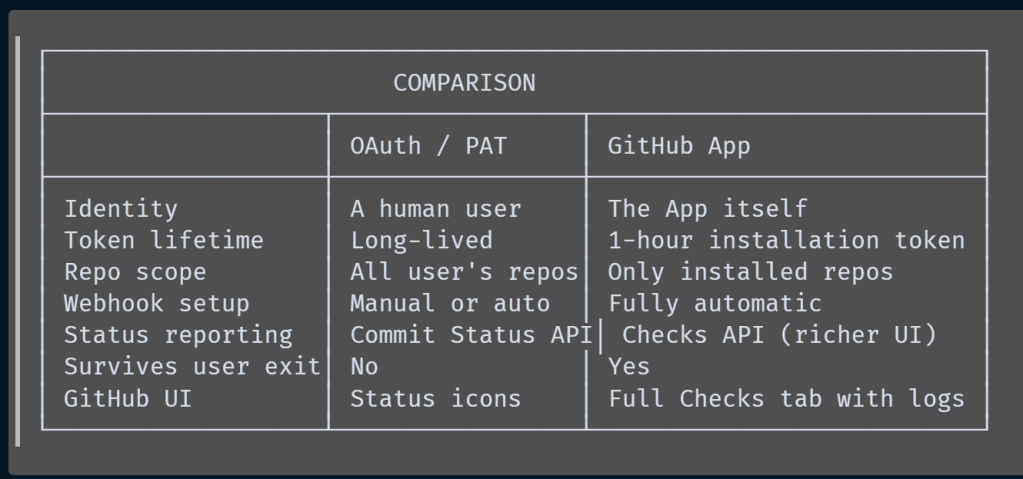
Citation: How to streamline GitHub API calls in Azure Pipelines — GitHub Blog
5. Trigger Mechanism — How a Commit Becomes a Pipeline Run
This section traces the exact sequence of events from a developer pushing a commit to a pipeline starting.
5.1 The Full Sequence (GitHub App-based)
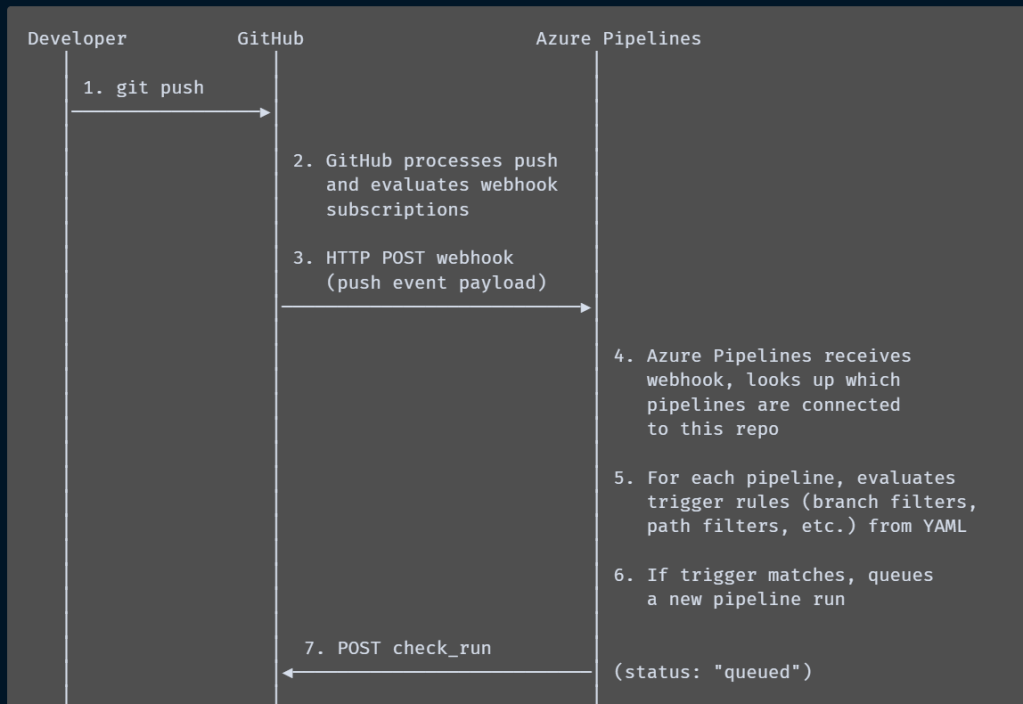
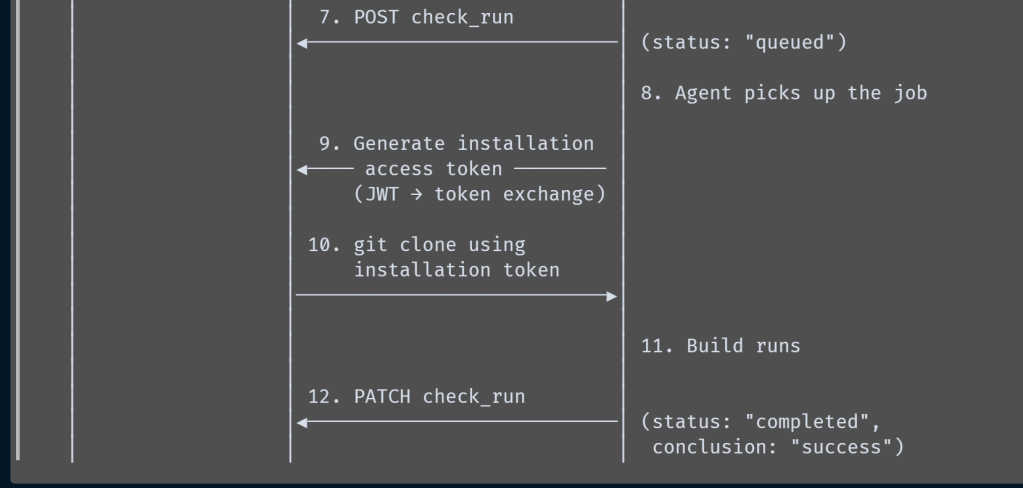
5.2 Identities Involved in the Trigger
| Step | Identity | Type | Role |
|---|---|---|---|
1. git push |
The developer | Human (GitHub user) | Pushes code to the branch |
| 2–3. Webhook delivery | GitHub platform | System | Evaluates webhook subscriptions and delivers the POST |
| 3. Webhook receiver | Azure Pipelines service | System (Microsoft-hosted) | Receives and validates the webhook payload |
| 4–6. Trigger evaluation | Azure Pipelines orchestrator | System | Matches webhook to pipeline definitions, evaluates YAML triggers |
| 7. Report status | Azure Pipelines App identity | GitHub App (azure-pipelines) |
Creates a check run on the commit via Checks API |
| 8. Execute build | Pipeline Agent | System (Microsoft-hosted or self-hosted) | Runs the pipeline YAML steps |
| 9–10. Clone code | Azure Pipelines App | GitHub App | Generates installation token, uses it to git clone |
| 12. Report result | Azure Pipelines App identity | GitHub App | Updates check run with final status |
5.3 The Webhook Payload (Push Event)
When GitHub sends the webhook, the HTTP request looks like this:
POST https://dev.azure.com/{org}/_apis/Hooks/IncomingWebhook?...
Content-Type: application/json
X-GitHub-Event: push
X-GitHub-Delivery: <unique-guid>
X-Hub-Signature-256: sha256=<HMAC-signature>

{
  "ref": "refs/heads/main",
  "before": "abc123...",
  "after": "def456...",
  "repository": {
    "id": 12345,
    "full_name": "my-org/my-repo",
    "private": true
  },
  "pusher": {
    "name": "developer-username",
    "email": "dev@example.com"
  },
  "commits": [
    {
      "id": "def456...",
      "message": "Fix login bug AB#1234",
      "author": { "name": "Dev", "email": "dev@example.com" }
    }
  ]
}
Webhook security:
- The
X-Hub-Signature-256header contains an HMAC-SHA256 signature of the payload body, signed with a shared secret established when the webhook was created. - Azure Pipelines validates this signature to ensure the webhook is genuinely from GitHub and hasn’t been tampered with.
5.4 What Happens for OAuth/PAT Connections (Without the GitHub App)
When using OAuth or PAT instead of the GitHub App:
- Azure DevOps creates a webhook on the GitHub repo during pipeline setup (using the OAuth token’s
admin:repo_hookscope or the PAT’s permissions). - The webhook URL points to Azure DevOps’ incoming webhook endpoint.
- On push, GitHub fires the webhook → Azure DevOps processes it the same way.
- Status is reported via the Commit Status API (older, simpler) rather than the Checks API (richer).
- Source code is cloned using the stored OAuth token or PAT instead of an installation access token.
The key difference: the webhook is a repo webhook (owned by the repo) rather than an App webhook (managed by the GitHub App installation).
Citations:
Webhook events and payloads — GitHub Docs
Triggers in Azure Pipelines — Microsoft Learn
Limitations
- For best performance, we recommend a maximum of 50 pipelines in a single repository. For acceptable performance, we recommend a maximum of 100 pipelines in a single repository. The time required to process a push to a repository increases with the number of pipelines in that repository. Whenever there’s a push to a repository, Azure Pipelines needs to load all YAML pipelines in that repository to determine if any of them need to run, and loading each pipeline incurs a performance penalty. In addition to performance issues, having too many pipelines in a single repository can lead to throttling on GitHub’s side, as Azure Pipelines may make too many requests in a short amount of time.
- The use of extends and include templates in a pipeline impacts the rate at which Azure Pipelines makes GitHub API requests and can lead to throttling on GitHub’s side. Before running a pipeline, Azure Pipelines need to generate the complete YAML code, so it must fetch all template files.
- Azure Pipelines loads a maximum of 2000 branches from a repository into dropdown lists in the Azure DevOps Portal, for example in the Select a branch window for the Default branch for manual and scheduled builds setting, or when choosing a branch when running a pipeline manually. If you don’t see your desired branch in the list, type the desired branch name manually in the Default branch for manual and scheduled builds field. If you click the ellipsis and open the Select a branch dialogue and close it without choosing a valid branch from the drop-down list, you may see a Some settings need attention message and a This setting is required message below Default Branch for manual and scheduled builds. To work around this message, reopen the pipeline and enter the name directly in the Default branch for manual and scheduled builds field.
6. Azure Boards AB# Linking — Multi-Org Resolution
6.1 How AB# Works
The Azure Boards GitHub App (https://github.com/apps/azure-boards) is a separate GitHub App from Azure Pipelines. Its sole purpose is work-item linking.
The flow:
- Developer pushes a commit with
AB#1234in the message (or PR title/description). - GitHub fires a
push(orpull_request) webhook to the Azure Boards App. - The Azure Boards App parses the commit messages and PR body for the
AB#<id>pattern. - It calls the Azure DevOps REST API to create a Development link from work item 1234 to the GitHub commit/PR.
- Optionally, if the message contains
Fixes AB#1234orFixed AB#1234, and the commit lands on the default branch, the work item’s state is transitioned to Done/Resolved.
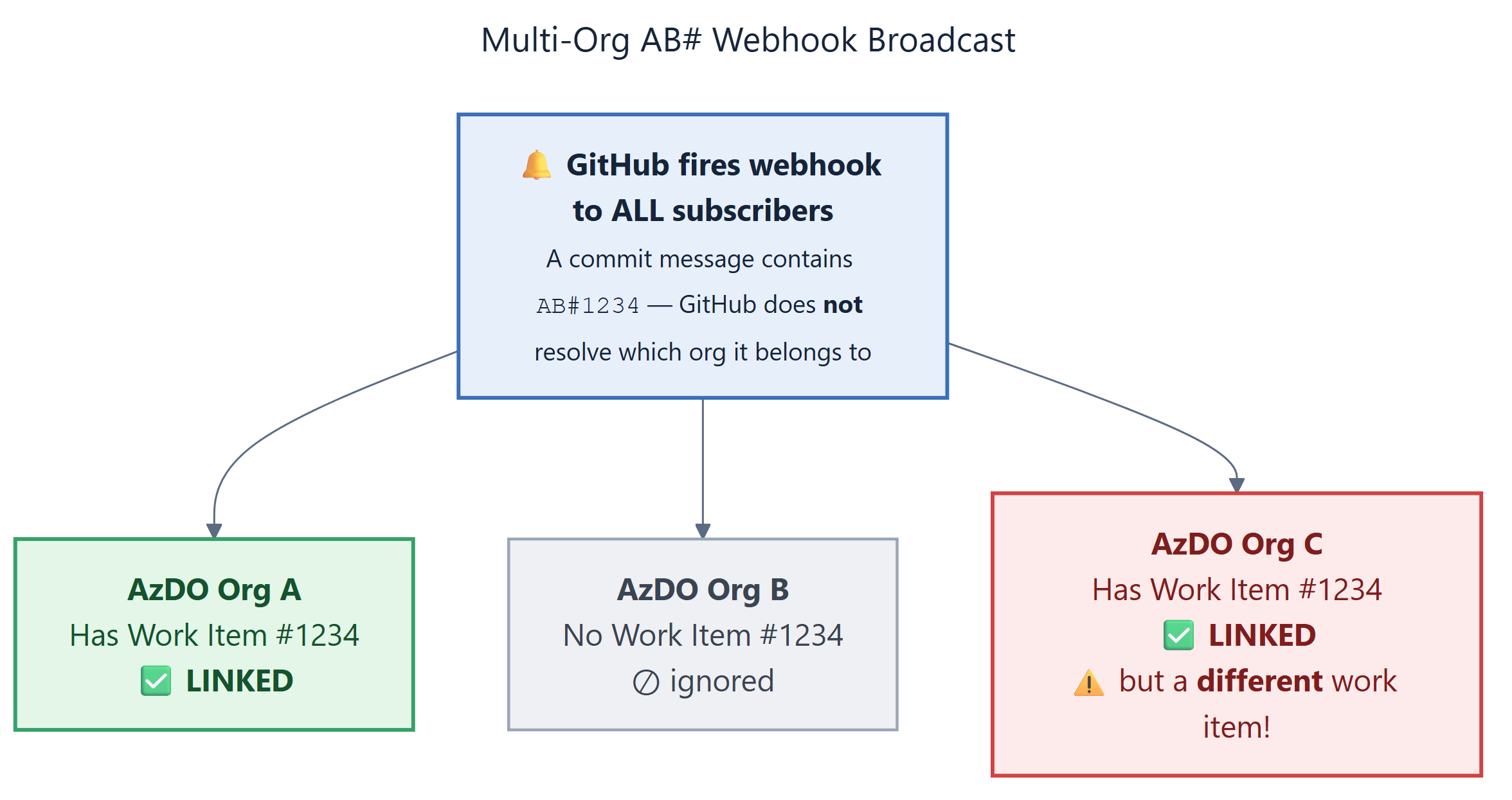
6.2 The Multi-Org Problem: 5 Azure DevOps Orgs, 1 GitHub Repo
This is a critical design limitation:
“You can connect a GitHub repository to only one Azure DevOps organization and project. If you connect the same GitHub repository to projects defined in two or more Azure DevOps organizations, you might experience unexpected AB# mention linking.”
— Microsoft Docs: Azure Boards-GitHub Integration
What actually happens internally:
When you install the Azure Boards app on a GitHub repo and connect it to an Azure DevOps project, the connection is stored as a mapping:
If you connect the same repo to 5 different Azure DevOps organizations:
- Each AzDO org installs (or reuses) the Azure Boards GitHub App.
- Each installation creates its own webhook subscription for that repo.
- When a commit with
AB#1234is pushed, GitHub fires the webhook to all registered webhook endpoints. - Each of the 5 Azure DevOps organizations receives the webhook independently.
- Each org looks up work item #1234 in its own database.
- If org A has a work item 1234 and org C also has a work item 1234, both get linked to the same commit — even though they might be completely different work items.
GitHub does NOT resolve which org the AB# belongs to.
The AB# syntax has no org qualifier — it’s just a number. GitHub simply broadcasts the webhook. The resolution (or lack thereof) happens entirely on the Azure DevOps side, where each org independently processes the event.
6.3 Recommended Architecture for Multi-Org
| Approach | How | Pros | Cons |
|---|---|---|---|
| One repo → One AzDO org | Each repo connects to exactly one AzDO org/project | Clean, no ambiguity | Limits flexibility |
| Fork per org | Fork the repo for each AzDO org, connect each fork to its org | Full isolation | Merge overhead, divergent histories |
| Repo-per-team | Split monorepo into per-team repos, each linked to its AzDO org | Clean boundaries | May not fit your codebase structure |
Don’t use AB# cross-org |
Use direct URL links in PRs instead of AB# syntax |
Works with multi-org | Loses automatic linking magic |
Citations:
Azure Boards-GitHub integration overview — Microsoft Learn
Connecting Azure Boards GitHub App to Multiple Azure DevOps Orgs — Josh Johanning
Multiple Azure Boards organizations / one GitHub org — Joost Voskuil
7. Fact-Check: “OAuth Dance for YAML Commit, Installation Token for Pipeline Runs”
The Claim: “When you create a pipeline via the Azure DevOps wizard, the UI does an OAuth dance to collect a user access token — that token is used to write the
azure-pipelines.ymlfile into the GitHub repo. But when the pipeline actually runs, it uses the auto-created service connection (typeGitHub-InstallationToken) to fetch source code and update build status.”
7.1 Verdict: ✅ Essentially Correct — The Wizard Uses a Dual-Token Model
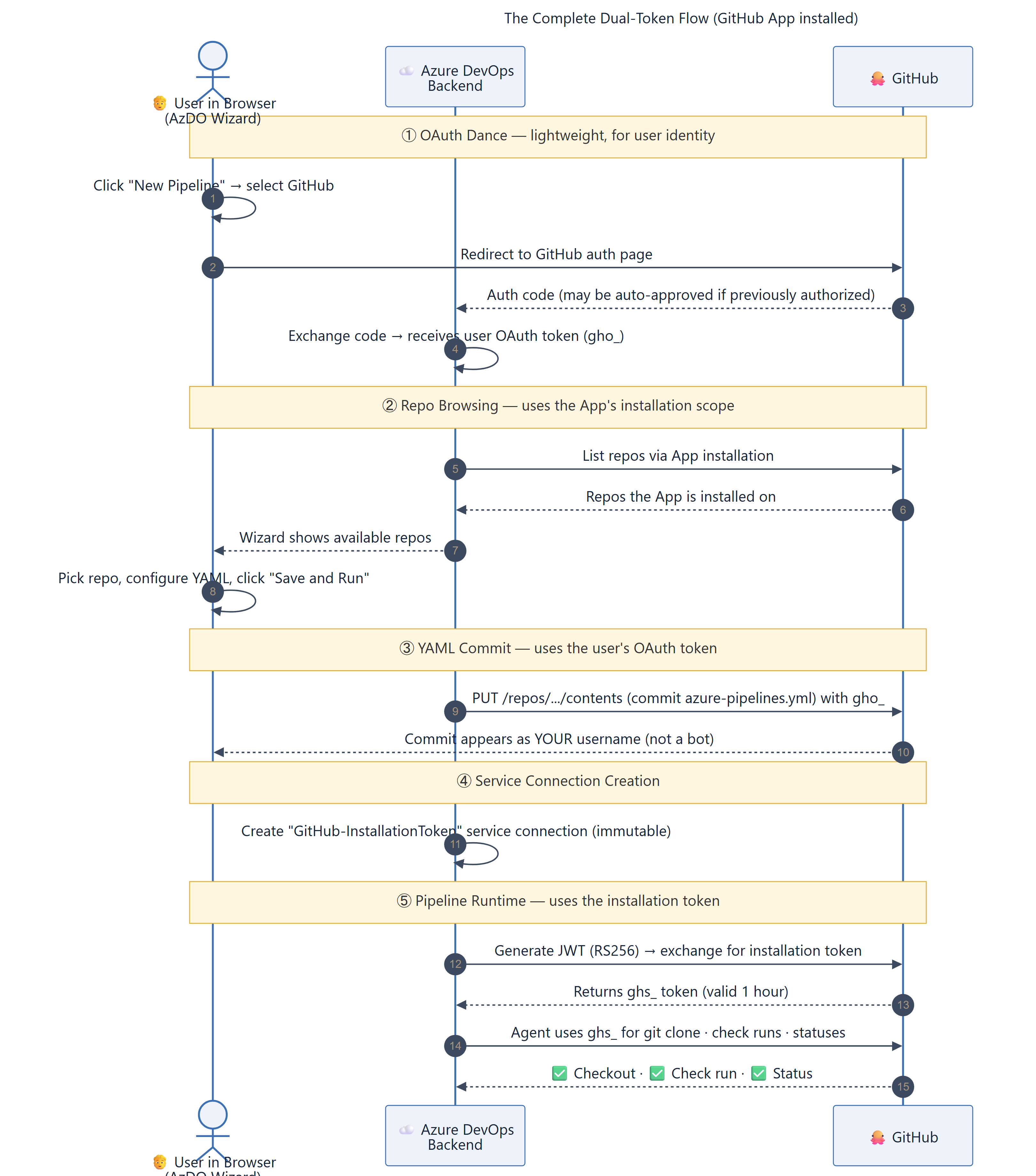
This claim is true. The pipeline creation wizard uses two different tokens for two different purposes, even when the GitHub App is installed:
| Phase | Token Used | Identity Shown | Purpose |
|---|---|---|---|
| Setup time (wizard UI) | User’s OAuth token | Your GitHub username | Commit azure-pipelines.yml to your repo |
| Runtime (pipeline execution) | GitHub App installation token (ghs_) |
Azure Pipelines app | Checkout source code, post build status |
This is a dual-token model — and it’s by design, not a bug.
7.2 Why Two Tokens? The Design Rationale
The wizard and the pipeline runtime have fundamentally different needs:
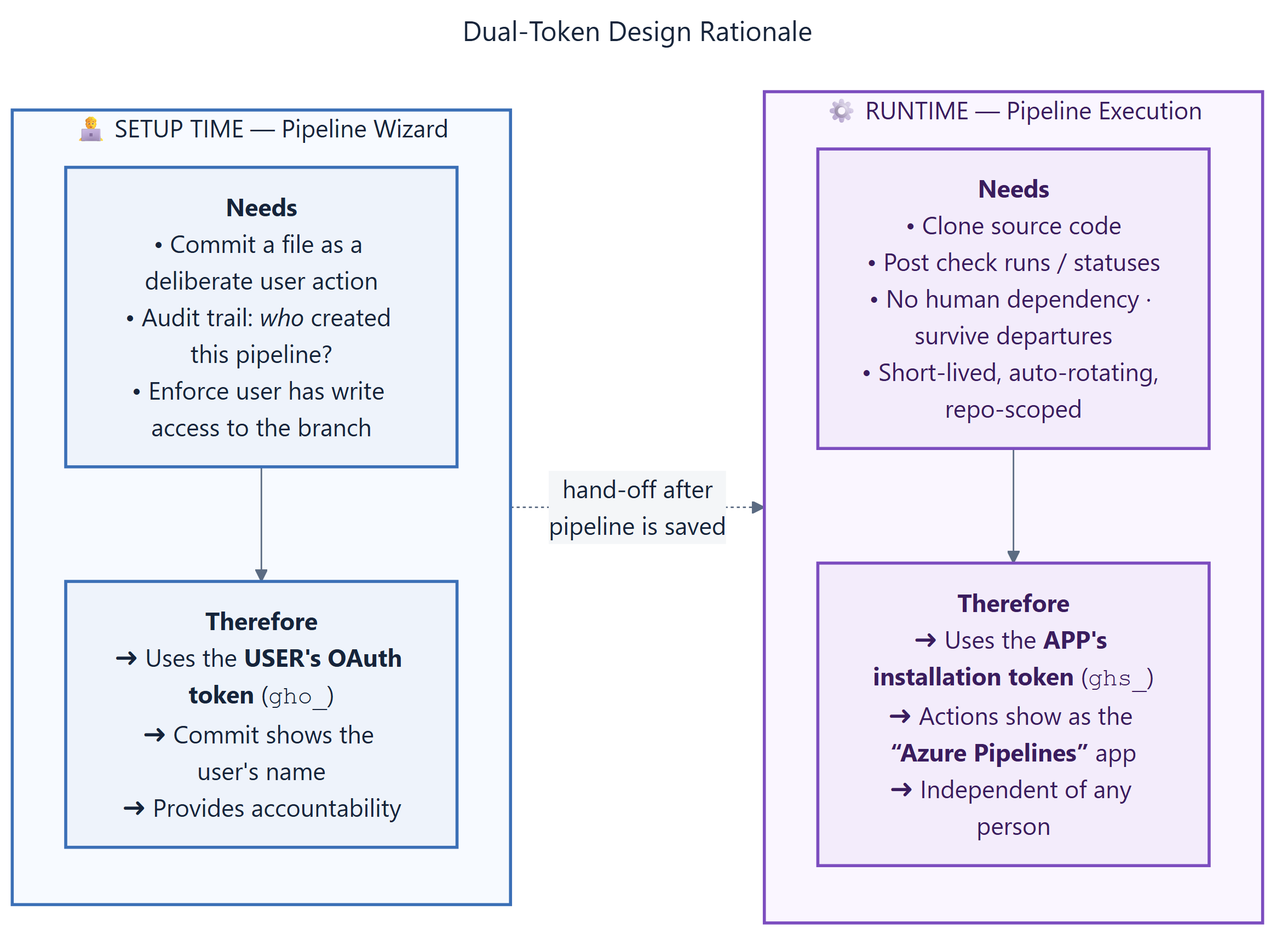
Why not use the App’s installation token for the YAML commit too?
Although the Azure Pipelines GitHub App does have contents: write permission (see Section 4.3), the wizard deliberately uses the user’s identity for the initial YAML commit because:
- Accountability — The commit that creates a pipeline is a significant repo change. It should be traceable to the human who initiated it, not attributed to a bot. Your Git history shows you created the pipeline.
- Branch protection compliance — Many repos require commits to be signed or authored by an authorized user. A bot commit might be rejected by branch protection rules, CODEOWNERS requirements, or org policies.
- Authorization verification — By committing as the user, GitHub enforces that the user actually has write access to that branch. The App’s installation-level access is broader and wouldn’t enforce per-user branch restrictions.
7.3 The Complete Dual-Token Flow (What Actually Happens)
Here is the accurate end-to-end flow when the Azure Pipelines GitHub App is installed and you create a new pipeline:
7.4 Evidence: How to Verify the Dual-Token Model
| What to Check | Where to Look | What You’ll See |
|---|---|---|
| YAML commit author | GitHub → repo → Commits → find the azure-pipelines.yml commit |
Your GitHub username (proves user OAuth token was used for setup) |
| Service connection type | Azure DevOps → Project Settings → Service Connections | “GitHub – InstallationToken” and “cannot be changed” (proves App token is used for runtime) |
| Build status in GitHub | GitHub → PR or commit → Checks tab | “Azure Pipelines” app badge (proves installation token is used for runtime status reporting via Checks API) |
| Pipeline checkout logs | Azure DevOps → Pipeline run → Job logs → “Checkout” step | Token injection via git -c http.extraheader="AUTHORIZATION: basic ..." (installation token, not user token) |
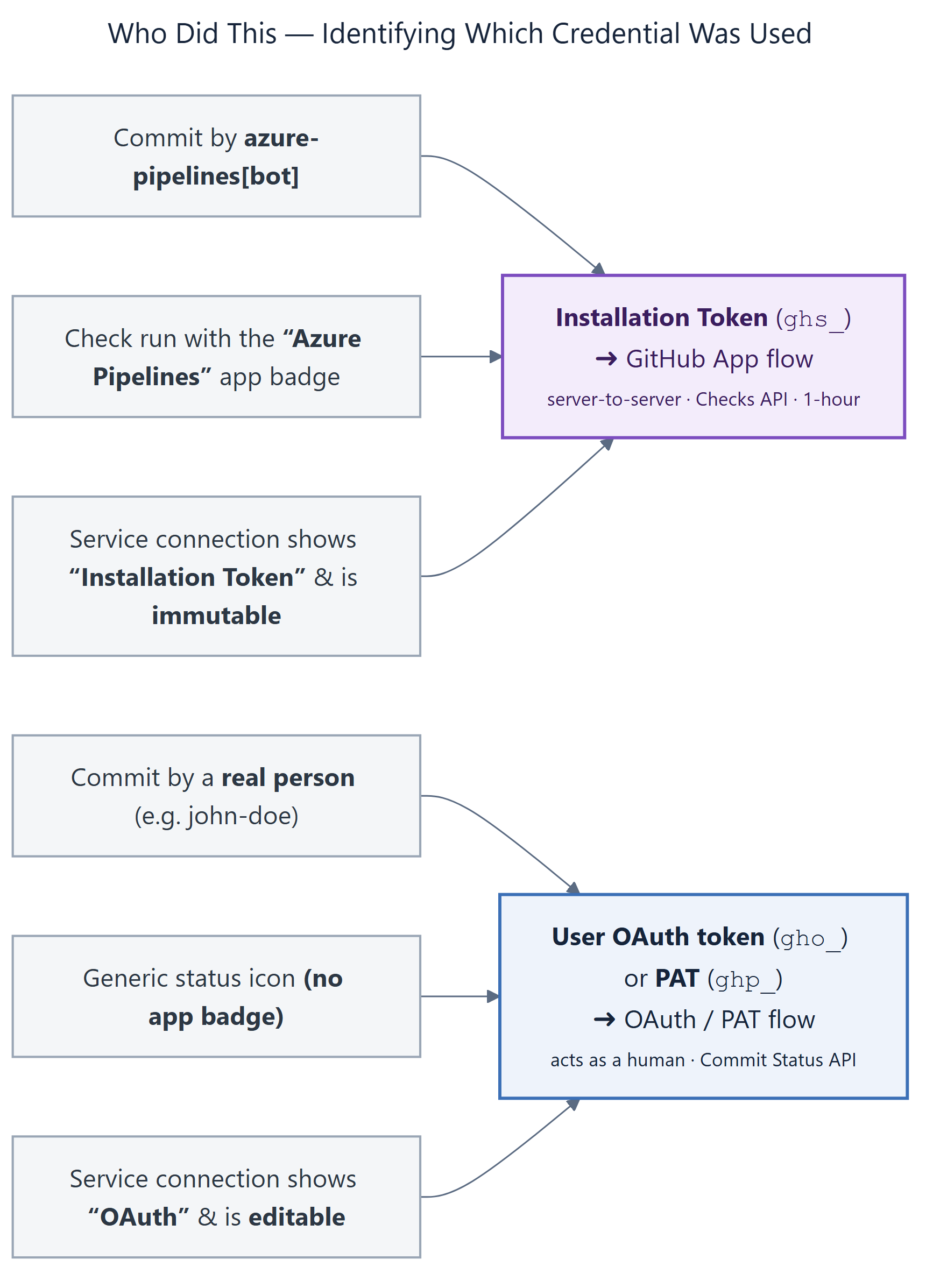
The YAML commit author is the definitive test. If the commit shows your name, the user’s OAuth token was used. If it showed
azure-pipelines[bot], the App’s installation token would have been used. Real-world testing confirms: the commit shows the user’s name.
7.5 What About the Pure OAuth Path (No GitHub App)?
If the Azure Pipelines GitHub App is not installed and the user clicks “Authorize” in the pipeline wizard, this triggers the classic OAuth flow described in Section 2.1. In this case, the same user OAuth token is used for everything:
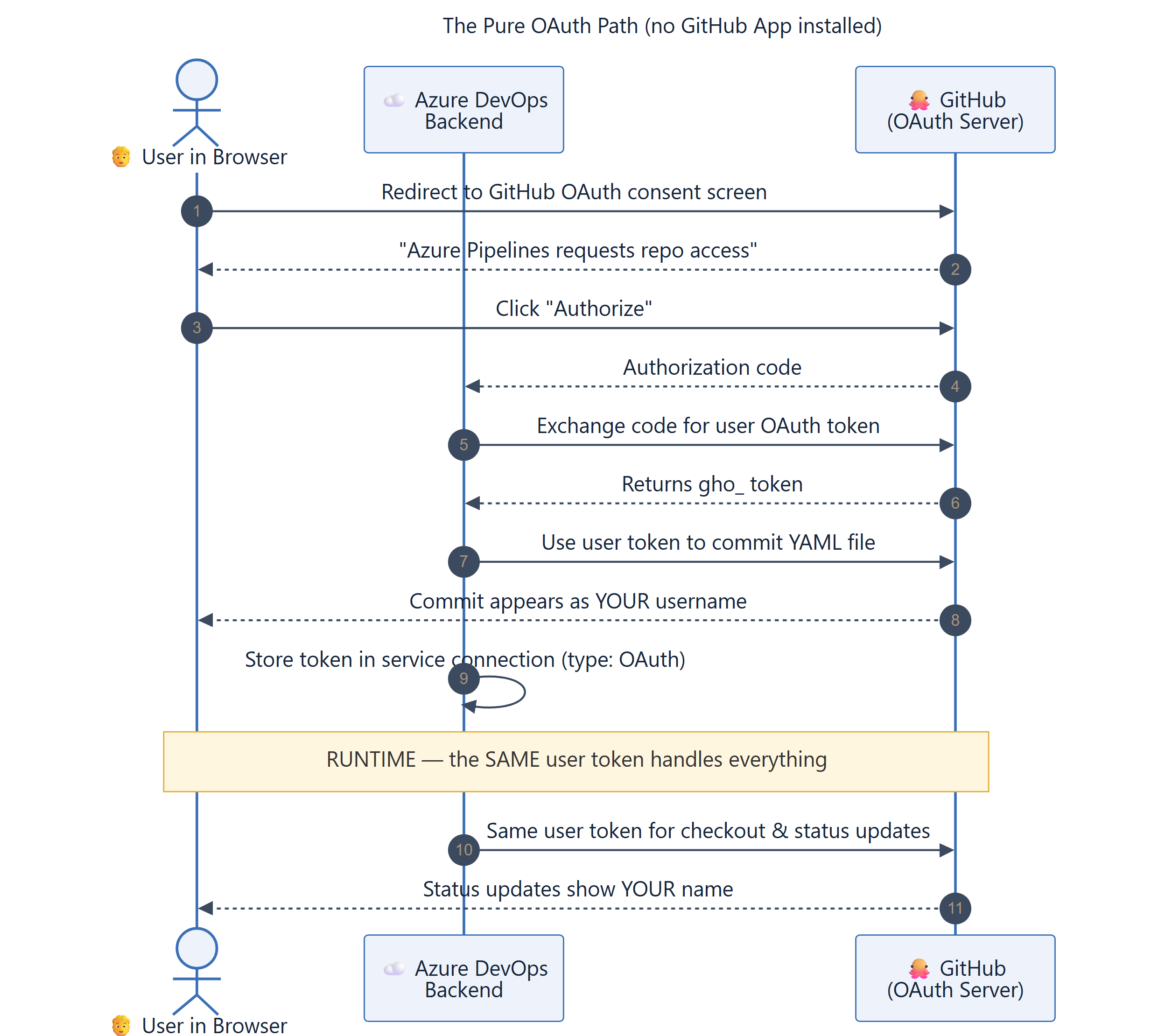
In the pure OAuth path, there is no token split — the user token handles everything (setup + runtime). The difference from the GitHub App path is:
| Aspect | Pure OAuth Path | GitHub App Path (Dual-Token) |
|---|---|---|
| YAML commit identity | Your username | Your username |
| Runtime checkout identity | Your username | Azure Pipelines App |
| Runtime status reporting | Commit Status API (your name) | Checks API (App badge) |
| Service connection type | OAuth (editable) | InstallationToken (immutable) |
| Token lifetime | Long-lived (until revoked) | 1-hour installation tokens |
| Survives employee departure | No — breaks if user leaves | Yes — App is independent |
7.6 Summary: Your Friend Was Right
| Aspect of the Claim | Accurate? | Details |
|---|---|---|
| “The UI does an OAuth dance” | ✅ Correct | The wizard performs an OAuth flow with GitHub to obtain a user access token, even when the GitHub App is installed. This may be auto-approved if you previously authorized the Azure Pipelines OAuth App. |
| “User token is used to write the YAML file” | ✅ Correct | The azure-pipelines.yml commit is authored by your GitHub username, proving the user’s OAuth token was used for the write operation. |
| “Pipeline runs use the InstallationToken service connection” | ✅ Correct | At runtime, the pipeline uses the GitHub-InstallationToken service connection, which generates short-lived ghs_ tokens via the GitHub App’s JWT flow. |
| “InstallationToken is used to fetch source code” | ✅ Correct | git clone in the pipeline agent uses the ghs_ installation token, not the user’s OAuth token. |
| “InstallationToken is used to update build status” | ✅ Correct | Check runs and commit statuses are posted using the ghs_ installation token via the Checks API, appearing as the “Azure Pipelines” app. |
Bottom line: The dual-token model is real and intentional. The wizard uses your OAuth identity for the YAML commit (accountability + branch protection compliance), then the pipeline switches to the GitHub App’s installation token for all runtime operations (no human dependency + short-lived tokens). Your friend’s description was accurate.
Citations:
Build GitHub repositories — Azure Pipelines | Microsoft Learn — describes both GitHub App and OAuth authentication paths, and the App’scontents: writepermission for YAML commits.
YAML pipeline editor guide — Azure Pipelines | Microsoft Learn — describes the wizard’s commit behavior.
8. Deep Dive: GitHub Installation Tokens (ghs_) — The Complete Picture
This section explains GitHub Installation Tokens from first principles — what they are in the GitHub ecosystem at large, how they work, and specifically how Azure DevOps uses them as the GitHub-InstallationToken service connection type.
8.1 What Is a GitHub Installation Token?
A GitHub installation access token (also called an installation token) is a short-lived, scoped credential that allows a GitHub App to perform API operations on the specific repositories and organizations where it is installed.
Think of it this way:
GitHub App (the application)

│

├── Installation on Org A (repos 1, 2, 3)

│       └── Installation Token → can access repos 1, 2, 3 only

│

├── Installation on Org B (repos 4, 5)

│       └── Installation Token → can access repos 4, 5 only

│

└── Installation on User C's account (repo 6)

└── Installation Token → can access repo 6 only
Each installation is a separate trust relationship between a GitHub App and a GitHub account (org or user). When a GitHub App needs to do something (clone code, post a comment, create a check run), it generates an installation token scoped to that specific installation.
Key distinction: An installation token is NOT a user token. It doesn’t act as any human. It acts as the GitHub App itself. In GitHub’s UI, actions performed with an installation token appear as
<app-name>[bot](e.g.,azure-pipelines[bot],dependabot[bot],renovate[bot]).
8.2 How Installation Tokens Fit in the GitHub Token Universe
GitHub has multiple token types, each with a distinctive prefix:
| Token Type | Prefix | Acts As | Lifetime | Scope | Use Case |
|---|---|---|---|---|---|
| Personal Access Token (classic) | ghp_ |
A specific user | Until revoked | User’s repos/scopes | Scripts, CLI, personal automation |
| Personal Access Token (fine-grained) | github_pat_ |
A specific user | Configurable expiry | Selected repos + permissions | Scoped personal automation |
| OAuth User Token | gho_ |
A specific user | Until revoked | OAuth scopes granted | Third-party apps acting as user |
| GitHub App Installation Token | ghs_ |
The App (bot) | 1 hour | Installation’s repos + permissions | Server-to-server automation |
| GitHub App User-to-Server Token | ghu_ |
User via App | 8 hours (refreshable) | User’s access within App | Apps acting on behalf of user |
Citation: Behind GitHub’s new authentication token formats — GitHub Blog — explains the
ghs_,ghp_,gho_,ghu_prefix system and the rationale behind it.
The ghs_ prefix stands for “GitHub Server-to-server” — reflecting that these tokens are designed for automated, machine-to-machine communication, not human-interactive sessions.
8.3 How an Installation Token Is Created (The Three-Step Dance)
Every installation token starts with a private key and ends with a 1-hour scoped credential. Here’s the complete flow:
┌─────────────────────────────────────────────────────────────────────────────┐

│                  INSTALLATION TOKEN CREATION FLOW                           │

│                                                                             │

│  Step 1: App Server generates a JWT                                         │

│  ─────────────────────────────────────                                      │

│                                                                             │

│  ┌─────────────────────┐                                                    │

│  │  App Server          │   Private Key (.pem)                               │

│  │  (e.g., Azure DevOps)│──────────┐                                        │

│  │                      │          ▼                                        │

│  │  JWT = {             │   sign(payload, key, RS256)                        │

│  │    iss: <app_id>,    │          │                                        │

│  │    iat: now - 60s,   │          ▼                                        │

│  │    exp: now + 600s   │   JWT: eyJhbGci...signed...                       │

│  │  }                   │                                                   │

│  └─────────────────────┘                                                    │

│                                                                             │

│  Step 2: Exchange JWT for Installation Token                                │

│  ──────────────────────────────────────────────                              │

│                                                                             │

│  App Server                              GitHub API                         │

│     │                                       │                               │

│     │  POST /app/installations/{id}/        │                               │

│     │       access_tokens                   │                               │

│     │  Authorization: Bearer <JWT>          │                               │

│     │───────────────────────────────────────▶│                               │

│     │                                       │  Verify JWT signature         │

│     │                                       │  with stored public key       │

│     │                                       │  ✓ Valid                      │

│     │◀───────────────────────────────────────│                               │

│     │  {                                    │                               │

│     │    "token": "ghs_ABCDEF...",          │                               │

│     │    "expires_at": "2026-04-02T09:23Z", │                               │

│     │    "permissions": { ... },            │                               │

│     │    "repositories": [ ... ]            │                               │

│     │  }                                    │                               │

│                                                                             │

│  Step 3: Use the Token                                                      │

│  ─────────────────────                                                      │

│                                                                             │

│  App Server                              GitHub API                         │

│     │                                       │                               │

│     │  GET /repos/org/repo/contents/        │                               │

│     │  Authorization: token ghs_ABCDEF...   │                               │

│     │───────────────────────────────────────▶│                               │

│     │                                       │  Validate ghs_ token          │

│     │                                       │  Check permissions + repo     │

│     │◀───────────────────────────────────────│  scope ✓ → return data       │

│     │  200 OK { ... }                       │                               │

│                                                                             │

└─────────────────────────────────────────────────────────────────────────────┘
8.4 Installation Token Properties
| Property | Value | Why It Matters |
|---|---|---|
| Format | ghs_ + 36 alphanumeric characters |
Easily identifiable in logs, secrets scanners, and GitHub’s token detection |
| Lifetime | Exactly 1 hour from creation | Short-lived = minimal blast radius if leaked |
| Renewable? | No — cannot be refreshed or extended | Must create a new one by repeating the JWT→token exchange |
| Revocable? | Yes — via DELETE /installation/token |
App can proactively revoke before expiry |
| Repo scope | Only repos in the installation | Cannot access repos the App isn’t installed on, even if the same org |
| Permission scope | At most the App’s declared permissions | Can be further reduced in the token request (down-scoping) |
| Identity | The App (bot), not any human | Actions show as <app-name>[bot] in GitHub UI |
| Rate limit | 5,000 requests/hour per installation | Shared across all tokens for the same installation |
8.5 How Installation Tokens Are Used in the Wild (Non-Azure Examples)
Installation tokens are the standard authentication mechanism for any GitHub App that performs automated operations. Here are common real-world examples:
Example 1: Dependabot (GitHub’s Own Bot)
Dependabot GitHub App

│

├── Installed on your org (all repos)

│

│  1. Dependabot server generates JWT with its private key

│  2. Exchanges JWT for installation token (ghs_...)

│  3. Uses ghs_ token to:

│     • Read package.json / Gemfile / requirements.txt

│     • Create a branch with updated dependencies

│     • Open a pull request

│     • Post comments explaining the update

│

│  Commit author: "dependabot[bot]"

│  PR author: "dependabot[bot]"
Example 2: Renovate Bot
# Simplified: How Renovate uses installation tokens

import jwt, requests, timeprivate_key = open(“renovate-app.pem”).read()
payload = {“iss”: RENOVATE_APP_ID, “iat”: int(time.time()) – 60, “exp”: int(time.time()) + 600}
jwt_token = jwt.encode(payload, private_key, algorithm=”RS256″)
resp = requests.post(
f”https://api.github.com/app/installations/{installation_id}/access_tokens”,
headers={“Authorization”: f”Bearer {jwt_token}”, “Accept”: “application/vnd.github+json”}
)
ghs_token = resp.json()[“token”] # “ghs_ABCDEFghijklmnop…”
requests.post(
“https://api.github.com/repos/my-org/my-repo/pulls”,
headers={“Authorization”: f”token {ghs_token}”},
json={
“title”: “chore(deps): update lodash to 4.17.21”,
“head”: “renovate/lodash-4.x”,
“base”: “main”,
“body”: “This PR updates lodash from 4.17.20 to 4.17.21.”
}
)
Example 3: Custom CI Bot
#!/bin/bash

# A custom CI bot that posts lint results as a GitHub check runJWT=$(generate-jwt –app-id 12345 –key ./my-bot.pem)
GHS_TOKEN=$(curl -s -X POST \
-H “Authorization: Bearer $JWT” \
-H “Accept: application/vnd.github+json” \
“https://api.github.com/app/installations/67890/access_tokens” \
| jq -r ‘.token’)
curl -X POST \
-H “Authorization: token $GHS_TOKEN” \
-H “Accept: application/vnd.github+json” \
“https://api.github.com/repos/my-org/my-repo/check-runs” \
-d ‘{
“name”: “Lint Check”,
“head_sha”: “abc123”,
“status”: “completed”,
“conclusion”: “failure”,
“output”: {
“title”: “3 lint errors found”,
“summary”: “ESLint found 3 errors in src/utils.js”
}
}’
8.6 How Azure DevOps Uses Installation Tokens (The GitHub-InstallationToken Service Connection)
When you install the Azure Pipelines GitHub App and create a pipeline, Azure DevOps creates a service connection of type GitHub-InstallationToken. Here’s exactly what that means:
What the Service Connection Stores
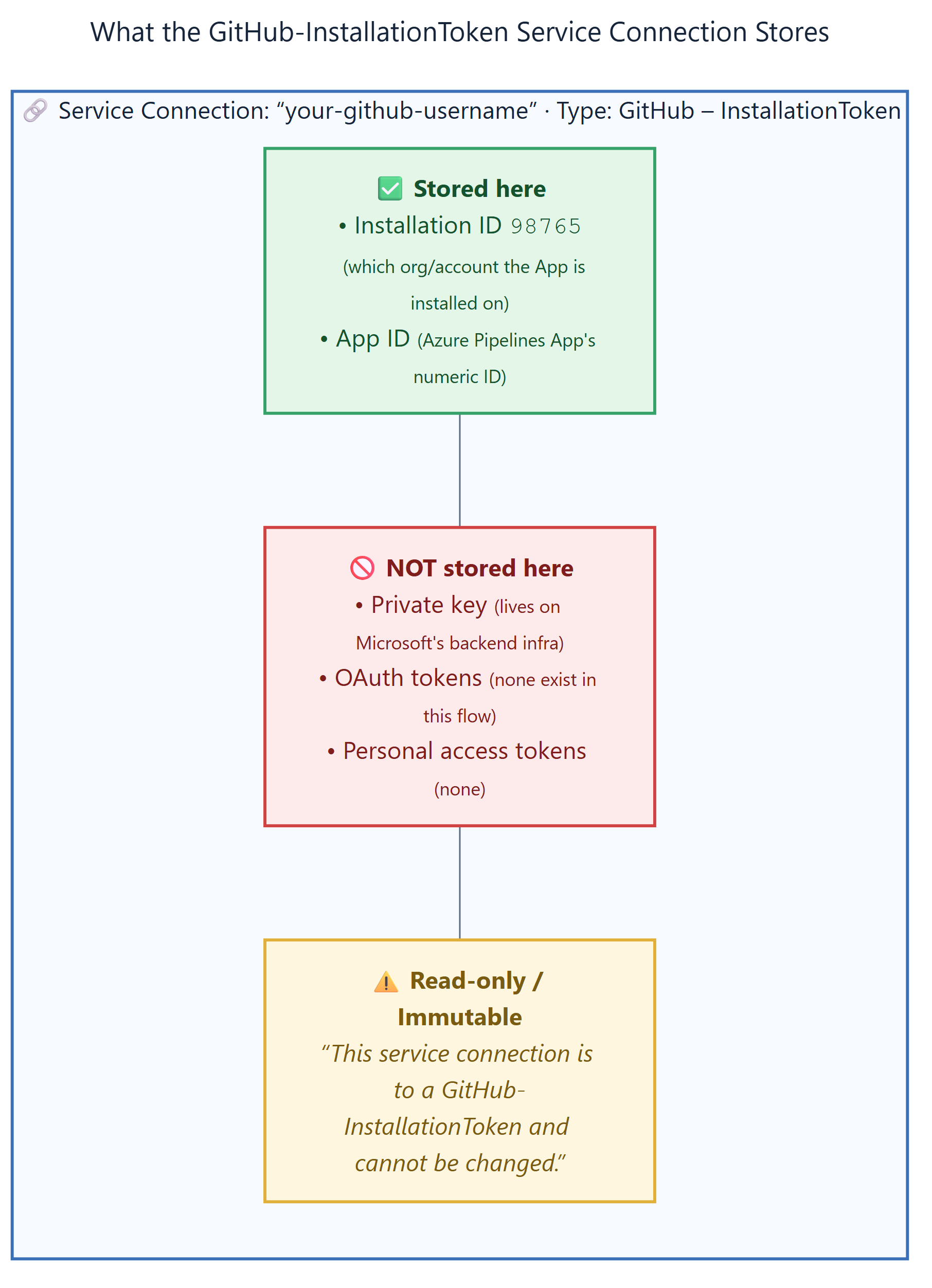
Why It’s Named After Your GitHub Account
The service connection is auto-named with your GitHub username (or org name) because it corresponds to the installation of the Azure Pipelines GitHub App on that specific GitHub account. One installation = one service connection. If the App is installed on github.com/orgs/contoso, the service connection is named contoso.
Why It Cannot Be Changed
The message “This service connection is to a GitHub-InstallationToken and cannot be changed” exists because:
- Microsoft manages the private key — it’s stored on their infrastructure, not in your service connection. There’s nothing for you to “edit.”
- The Installation ID is fixed — it’s assigned by GitHub when the App is installed. You can’t change which installation this points to without uninstalling and reinstalling the App.
- Tokens are generated dynamically — no static credential is stored in the connection. Every pipeline run generates a fresh
ghs_token via the JWT flow. There’s nothing to rotate or update. - Immutability is a security feature — preventing edits ensures no one can tamper with the authentication mechanism or redirect it to a different installation.
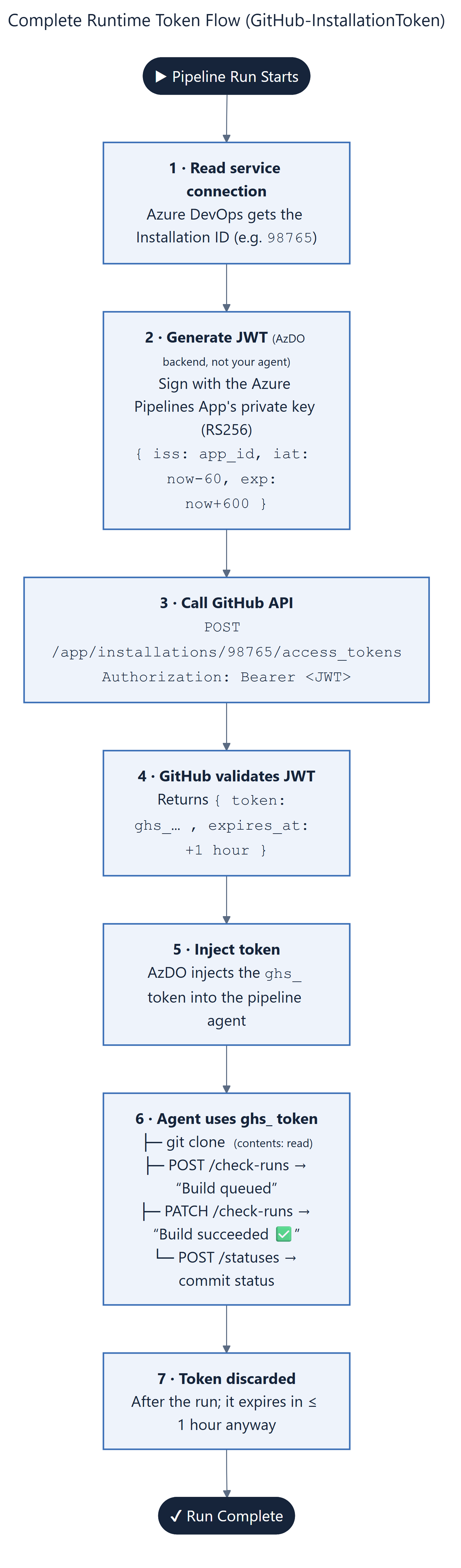
The Complete Runtime Flow
When a pipeline with a GitHub-InstallationToken service connection runs:
8.7 Installation Token vs. Other GitHub Credentials — When You See Each
8.8 Limitations and Gotchas of the GitHub-InstallationToken Service Connection
| Issue | Details | Workaround |
|---|---|---|
| Cannot be edited | By design — immutable. You can’t change the name, credentials, or target. | Delete and recreate by uninstalling/reinstalling the App |
| Some pipeline tasks don’t support it | Older tasks like GithubRelease@1 only accept OAuth or PAT connections, not InstallationToken |
Create a secondary OAuth or PAT service connection for those specific tasks |
| Cannot be created via CLI | The az devops service-endpoint CLI doesn’t support InstallationToken type — it’s auto-created by the wizard only |
Use the web UI pipeline creation wizard to trigger auto-creation |
| One per GitHub org/account | Each installation of the Azure Pipelines App creates one service connection | This is usually fine — all repos under that org share the same connection |
| Token scope is the App’s full installation scope | The ghs_ token can access all repos the App is installed on (unless down-scoped in the API request) |
Install the App on specific repos rather than “all repositories” if you need isolation |
| Rate limiting | 5,000 API requests/hour per installation, shared across all pipelines using this connection | For very high-volume orgs, this can be a bottleneck. Consider splitting App installations across sub-orgs. |
Citations:
Build GitHub repositories — Azure Pipelines | Microsoft Learn — describes the three authentication types and the GitHub App permissions table.
Generating an installation access token for a GitHub App — GitHub Docs — the JWT→token exchange API.
Behind GitHub’s new authentication token formats — GitHub Blog — token prefix system (ghs_,ghp_,gho_,ghu_).
About authentication with a GitHub App — GitHub Docs — overview of the three-level identity model.
Differences between GitHub Apps and OAuth apps — GitHub Docs — when to use which.
GitHub Azure CLI Extensions Issue #1971 — documents the inability to createInstallationTokenservice connections via CLI.
Azure Pipelines Tasks Issue #18413 — documents theGithubRelease@1incompatibility withInstallationTokenscheme.
9. References
Microsoft Official Documentation
| # | Title | URL |
|---|---|---|
| 1 | Build GitHub repositories — Azure Pipelines | https://learn.microsoft.com/en-us/azure/devops/pipelines/repos/github?view=azure-devops |
| 2 | GitHub integration overview — Azure DevOps | https://learn.microsoft.com/en-us/azure/devops/cross-service/github-integration?view=azure-devops |
| 3 | Triggers in Azure Pipelines | https://learn.microsoft.com/en-us/azure/devops/pipelines/build/triggers?view=azure-devops |
| 4 | Azure Boards-GitHub integration | https://learn.microsoft.com/en-us/azure/devops/boards/github/?view=azure-devops |
| 5 | Link GitHub commits/PRs to work items | https://learn.microsoft.com/en-us/azure/devops/boards/github/link-to-from-github?view=azure-devops |
| 6 | Connect Azure Boards to GitHub | https://learn.microsoft.com/en-us/azure/devops/boards/github/connect-to-github?view=azure-devops |
| 7 | Install the Azure Boards App for GitHub | https://learn.microsoft.com/en-us/azure/devops/boards/github/install-github-app?view=azure-devops |
GitHub Documentation
Community / Blog Posts
| # | Title | URL |
|---|---|---|
| 18 | How to streamline GitHub API calls in Azure Pipelines — GitHub Blog | https://github.blog/enterprise-software/ci-cd/how-to-streamline-github-api-calls-in-azure-pipelines/ |
| 19 | Connecting Azure Boards to Multiple AzDO Orgs — Josh Johanning | https://josh-ops.com/posts/github-connecting-to-azure-boards-multiple-orgs/ |
| 20 | Multiple Azure Boards orgs / one GitHub org — Joost Voskuil | https://foxhole.nl/blog/2025/azureboards-github-integration-advanced/ |
| 21 | Creating a GitHub App-based AzDO Service Connection — Richard Fennell | https://blogs.blackmarble.co.uk/rfennell/setting-up-github-app-ado-service-connection-on-another-org/ |
| 22 | GitHub integration with Azure Pipelines — Hands-on Labs | https://www.azuredevopslabs.com/labs/vstsextend/github-azurepipelines/ |
GitHub Issues (Known Limitations)
| # | Title | URL |
|---|---|---|
| 23 | Azure DevOps CLI: Cannot create InstallationToken service connection | https://github.com/Azure/azure-cli-extensions/issues/1971 |
| 24 | GithubRelease@1 does not accept InstallationToken service connections | https://github.com/microsoft/azure-pipelines-tasks/issues/18413 |
Document last updated on 2026-04-02. All cited URLs were accessible at the time of research.


