How I built a command-line interface for Dynamics 365 CRM, tackled enterprise authentication without a custom app registration, and unlocked a powerful new pattern: using the CLI as a skill inside AI agents like GitHub Copilot, Claude, and others.
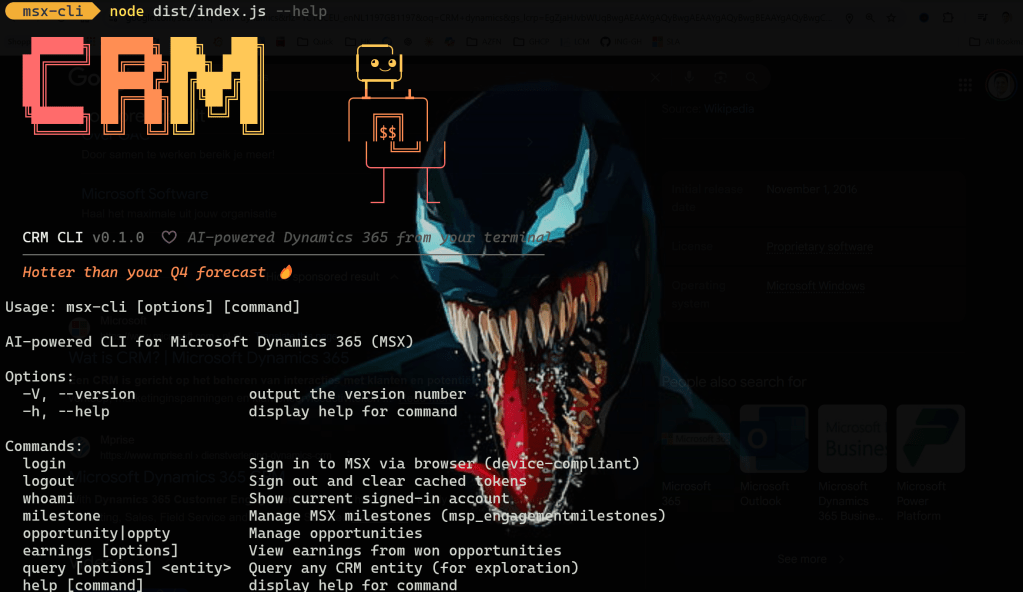
Why a CLI for Dynamics 365?
If you’ve ever worked with a large-scale CRM system — especially Dynamics 365 — you know the drill. You open the web portal, navigate through several clicks, wait for pages to load, find the record you need, and then repeat for the next one. For a one-off lookup, that’s fine. But when you’re managing dozens of milestones, tracking opportunity pipelines, or trying to get a quick status update during a meeting, the browser experience becomes a bottleneck.
Dynamics 365 (often deployed as CRM or Sales) is a powerful platform. Under the hood, it exposes a rich OData v4 API — the Dynamics Web API — that allows full programmatic access to every entity in the system. Opportunities, accounts, contacts, milestones, custom entities — they’re all accessible via standard HTTP requests with proper authentication.
This gave me an idea: what if I could interact with CRM from my terminal?
# Quick status check — no browser needed
crm-cli milestone list --status "At Risk"
crm-cli opportunity list --active --top 5
crm-cli earnings --year 2026
A CLI brings several advantages:
- Speed — No page loads, no navigation. Get what you need in seconds.
- Scriptability — Pipe outputs, chain commands, automate workflows.
- Integration — Feed CRM data into other tools, dashboards, or pipelines.
- Offline triage — Review data pulled earlier, even without connectivity.
But the real unlock — the one I didn’t fully appreciate until later — was this: a CLI is the perfect interface for AI agents. When you give an AI assistant a set of well-defined commands with structured output, it can use them as tools to reason about your CRM data, answer natural language questions, and take actions on your behalf.
More on that later. First, let’s talk about the biggest hurdle I faced.
The Authentication Challenge
The Problem: No Custom App Registration
In any OAuth 2.0 flow targeting Dynamics 365, you typically need an app registration in your identity provider (Azure Active Directory / Microsoft Entra ID). This app registration defines a client ID, redirect URIs, and the permissions (scopes) your application requests.
But here’s the constraint I was working under: the CRM administrator would not approve a new app registration. This is common in large enterprises — app registrations are tightly controlled, go through lengthy approval processes, and often require security reviews.
Without a custom app registration, most OAuth tutorials hit a dead end. But there’s a well-known workaround.
The Workaround: First-Party Client IDs
Microsoft publishes first-party, pre-registered application IDs that are already trusted across tenants. These are the same client IDs used by official tools like the Power Platform CLI (pac), XrmToolBox, and the Dataverse ServiceClient.
The key one for Dynamics 365:
Client ID: 2ad88395-b77d-4561-9441-d0e40824f9bc
This is a multi-tenant, public client app — already registered and consented in most organizations. Using it means:
- No app registration request to file
- No admin approval workflow to wait for
- Works in most enterprise tenants out of the box
Choosing the Right OAuth Flow
Even with a valid client ID, you need to pick the right authentication flow. I evaluated several options:
| Flow | MFA Support | Device Compliance | Headless | Verdict |
|---|---|---|---|---|
| Device Code | ✅ | ❌ | ✅ | Blocked by compliance policies |
| ROPC (Password) | ❌ | ❌ | ✅ | Deprecated, blocked by MFA |
| Auth Code + PKCE (Browser) | ✅ | ✅ | ❌ (first run) | Works |
| Azure CLI Piggyback | ✅ | ✅ | ✅ | Requires az CLI installed |
My first attempt was Device Code Flow — the standard approach for CLI apps. The user visits a URL, enters a code, and the CLI receives a token. It’s clean, simple, and well-documented.
It failed with an error:
Error 530033: "Your admin requires the device requesting access to be managed."
The problem is subtle: in device code flow, the token is issued to whichever device holds the device code, not necessarily the compliant device where the user authenticated. Conditional Access policies that require managed/compliant devices can’t verify compliance in this flow — the authentication and the token recipient are decoupled.
The Solution: Authorization Code Flow with PKCE via System Browser
The flow that works is OAuth 2.0 Authorization Code with PKCE, routed through the system browser. Here’s why it satisfies everything:
- The system browser (e.g., Edge, Chrome) on a managed device carries the device’s Primary Refresh Token (PRT) — a credential proving both user identity and device compliance.
- When the identity provider evaluates Conditional Access, it sees the PRT’s device claims — managed, compliant, MFA completed — and issues the token.
- PKCE (Proof Key for Code Exchange) secures the flow without needing a client secret, which is critical for public client applications.
The implementation uses MSAL (Microsoft Authentication Library) which handles the heavy lifting:
import { PublicClientApplication } from "@azure/msal-node";

const pca = new PublicClientApplication({
  auth: {
    clientId: "2ad88395-b77d-4561-9441-d0e40824f9bc",
    authority: "https://login.microsoftonline.com/organizations",
  },
  cache: {
    cachePlugin: {
      beforeCacheAccess: async (context) => {
        const data = loadCacheFromDisk();
        if (data) context.tokenCache.deserialize(data);
      },
      afterCacheAccess: async (context) => {
        if (context.cacheHasChanged) {
          saveCacheToDisk(context.tokenCache.serialize());
        }
      },
    },
  },
});
When the user runs login, MSAL:
- Generates a PKCE code verifier and code challenge
- Starts a temporary localhost HTTP server on a random port
- Opens the system browser to the authorization endpoint
- Receives the authorization code via the localhost redirect
- Exchanges the code + verifier for tokens (access token, refresh token, ID token)
- Caches everything locally
const result = await pca.acquireTokenInteractive({
  scopes: ["https://your-crm-instance.crm.dynamics.com/.default"],
  openBrowser: async (url) => {
    // Open the system browser — this carries device PRT
    exec(`start "" "${url}"`);  // Windows
  },
});
The magic is in step 3: because the system browser carries the PRT, the identity provider sees a compliant device and issues the token. No custom app registration. No Conditional Access failures.
Why localhost Redirect Works Without Registration
You might wonder: “How does http://localhost:52431 work as a redirect URI if we didn’t register it?”
This is defined in RFC 8252, Section 7.3 — OAuth 2.0 for Native Apps:
The authorization server MUST allow any port to be specified at the time of the request for loopback IP redirect URIs.
Microsoft Entra ID implements this: for any public client application, http://localhost redirects are always accepted regardless of the registered redirect URIs. The port is dynamic, assigned by the OS at runtime. This is secure because:
- Traffic never leaves the machine
- The random port prevents pre-binding attacks
- PKCE ensures intercepted codes are useless
- The server exists only for seconds during authentication
Silent Token Renewal
After the first interactive login, subsequent commands use silent token renewal — no browser popup needed:
async function getToken(): Promise<string> {
  const accounts = await pca.getTokenCache().getAllAccounts();

  if (accounts.length === 0) {
    throw new Error("Not logged in. Run 'login' first.");
  }

  try {
    // Try silent renewal using cached refresh token
    const result = await pca.acquireTokenSilent({
      scopes: ["https://your-crm-instance.crm.dynamics.com/.default"],
      account: accounts[0],
    });
    return result.accessToken;
  } catch {
    // Refresh token expired — fall back to interactive
    console.log("Session expired. Re-authenticating...");
    const result = await login();
    return result.accessToken;
  }
}
The token cache (stored at ~/.crm-cli/token-cache.json) contains the refresh token, which MSAL uses to silently obtain new access tokens. The user authenticates once via browser, then the CLI works headlessly for days or weeks until the refresh token expires.
Implementation: Building the CLI Step by Step
With authentication solved, let’s walk through how the CLI itself comes together. I chose TypeScript with Node.js — the ecosystem has excellent libraries for CLI building, and TypeScript’s type safety is a lifesaver when working with CRM’s dynamic entity schemas.
Project Structure
The project follows a clean separation of concerns:
src/
├── index.ts          # CLI entry point — registers all commands
├── auth.ts           # Authentication (MSAL, token cache, login/logout)
├── api.ts            # Dynamics 365 API client (OData, CRUD)
├── config.ts         # Configuration (CRM URL, client ID, scopes)
├── helpers.ts        # Formatters, table rendering, utilities
└── commands/
    ├── auth.ts       # login, logout, whoami
    ├── milestone.ts  # milestone list, get, query, edit, add
    ├── opportunity.ts# opportunity list, get, search, edit
    ├── earnings.ts   # earnings summary
    └── query.ts      # generic OData query (exploration)
Step 1: Setting Up the CLI Framework
I used Commander.js for command parsing. It handles arguments, options, help text, and subcommands elegantly:
import { Command } from "commander";

const program = new Command();

program
  .name("crm-cli")
  .description("CLI for Dynamics 365 CRM")
  .version("0.1.0");

// Register command groups
registerAuthCommands(program);
registerMilestoneCommands(program);
registerOpportunityCommands(program);

program.parse();
Each command group registers itself as a subcommand with its own options:
export function registerMilestoneCommands(program: Command): void {
  const ms = program
    .command("milestone")
    .description("Manage CRM milestones");

  ms.command("list")
    .description("List your active milestones")
    .option("-n, --top <number>", "Max results", "50")
    .option("--status <status>", "Filter by status label")
    .option("--all", "Include inactive records", false)
    .action(async (opts) => {
      // Implementation here
    });
}
Step 2: Building the CRM API Client
The Dynamics 365 Web API follows OData v4 conventions. Every entity has a plural endpoint (e.g., opportunities, contacts), and you can shape queries using standard OData parameters.
The API client layer wraps fetch with authentication headers and OData conventions:
async function crmHeaders(): Promise<Record<string, string>> {
  const token = await getToken();
  return {
    Authorization: `Bearer ${token}`,
    Accept: "application/json",
    "OData-MaxVersion": "4.0",
    "OData-Version": "4.0",
    // This annotation gives us formatted values for lookups and picklists
    Prefer: 'odata.include-annotations="*"',
  };
}

async function crmFetch<T>(entityPath: string): Promise<ODataResponse<T>> {
  const url = `${CRM_BASE_URL}/api/data/v9.2/${entityPath}`;
  const response = await fetch(url, { headers: await crmHeaders() });
  if (!response.ok) {
    const body = await response.text();
    throw new Error(`CRM API error ${response.status}: ${body}`);
  }
  return response.json();
}
A key detail: the Prefer: odata.include-annotations="*" header is essential. Without it, you get raw values — cryptic GUIDs for lookup fields, numeric codes for picklists. With annotations, the API returns human-readable formatted values alongside the raw data:
{
  "statuscode": 861980001,
  "statuscode@OData.Community.Display.V1.FormattedValue": "On Track",
  "_ownerid_value": "a1b2c3d4-...",
  "_ownerid_value@OData.Community.Display.V1.FormattedValue": "Jane Smith"
}
The client also provides crmPatch and crmPost methods for write operations — updating fields on existing records or creating new ones.
Step 3: Implementing Entity Commands
Each entity (milestones, opportunities, etc.) gets a set of commands that map to common operations.
List with filters — The most commonly used pattern. Build an OData $filter string from CLI options:
const items = await listMilestones({
  userId,                // $filter=_ownerid_value eq '<guid>'
  activeOnly: !opts.all, // $filter=statecode eq 0
  status: statusValue,   // $filter=msp_milestonestatus eq <value>
  top: parseInt(opts.top, 10),  // $top=50
});
Get details — Fetch a single record and display it in a detailed, labeled format instead of raw JSON.
Edit — Accept field=value pairs and issue a PATCH request:
crm-cli milestone edit 7-501234567 msp_name="Updated Name" msp_forecastcomments="New notes"
The field parser converts these into a JSON body and sends a PATCH to the entity endpoint.
Schema discovery — One of the most useful features during development. The Dynamics Web API exposes entity metadata, so the CLI can show you all available fields:
crm-cli milestone show-schema --filter "status"
Step 4: Rich Terminal Output
Raw JSON dumps are hard to read. The CLI uses cli-table3 for tables and chalk for colors:
🏁 My Milestones (3 results)┌────────────────┬──────────────────────┬──────────────┬────────────┬───────────────┐│ Milestone # │ Name │ Status │ Date │ Account │├────────────────┼──────────────────────┼──────────────┼────────────┼───────────────┤│ 7-501234567 │ Cloud Migration P1 │ On Track │ 2026-06-15 │ Contoso Ltd │├────────────────┼──────────────────────┼──────────────┼────────────┼───────────────┤│ 7-501234568 │ Rollout Planning │ At Risk │ 2026-07-01 │ Fabrikam Inc │└────────────────┴──────────────────────┴──────────────┴────────────┴───────────────┘
Loading spinners (via ora) give feedback during API calls, and a consistent error handler wraps every command to display failures cleanly:
function wrapAction(fn: (...args: any[]) => Promise<void>) {
  return (...args: any[]) => {
    fn(...args).catch((err: Error) => {
      console.error(`❌ ${err.message}`);
      process.exit(1);
    });
  };
}
Step 5: The Generic Query Escape Hatch
Beyond the structured commands, the CLI includes a raw query command for exploration:
crm-cli query contacts -q "\$select=fullname,emailaddress1&\$top=3"
The Real Power: Using the CLI as an AI Agent Skill
Here’s where things get exciting. A CLI with well-defined commands and structured output is essentially a tool interface — exactly what AI agents need to interact with external systems.
What is a “Skill” in AI Agent Terms?
Modern AI agents (GitHub Copilot, Claude, ChatGPT, and others) support the concept of tools or skills — external capabilities the agent can invoke to perform actions or retrieve information beyond its training data. When you give an AI agent access to a CLI tool:
- The agent reads the tool’s description (what it does, what parameters it accepts)
- When a user asks a natural language question, the agent decides if a tool can help
- The agent constructs the right command with the right arguments
- The tool executes and returns results
- The agent interprets the results and responds in natural language
Setting Up the CLI as a Copilot Skill
In VS Code with GitHub Copilot, you can register external tools via a configuration file. Here’s how the CRM CLI becomes a skill:
---
description: "CLI for interacting with Dynamics 365 CRM.
  Can list milestones, opportunities, earnings, query entities,
  and manage CRM records."
---

## CRM CLI Skill

Use `crm-cli` to interact with Dynamics 365 CRM data.

### Available Commands

- `crm-cli milestone list [--status <status>] [--top <n>]` — List milestones
- `crm-cli milestone get <id>` — Get milestone details
- `crm-cli milestone query --user <email> [--status <status>]` — Query milestones
- `crm-cli opportunity list [--active] [--top <n>]` — List opportunities
- `crm-cli opportunity get <id>` — Get opportunity details
- `crm-cli earnings [--year <year>]` — View earnings summary
- `crm-cli query <entity> -q "<odata>"` — Query any CRM entity
Once registered, the AI agent understands what the CLI can do and invokes it autonomously when relevant.
Use Case 1: Natural Language CRM Queries
Instead of remembering command syntax and field names, you just ask:
You: “Show me all my milestones that are at risk”
The AI agent translates this to:
crm-cli milestone list --status "At Risk"
It runs the command, reads the table output, and responds:
Agent: "You have 2 milestones at risk:

Teams Rollout Planning (7-501234568) — due July 1, 2026 for Fabrikam Inc
Data Center Migration (7-501234570) — due August 15, 2026 for Northwind Traders
Would you like details on either of these?"
“What opportunities are associated with the Fabrikam account?” and the agent chains calls together.
Use Case 2: Cross-Entity Analysis
You: “Compare my milestone completion rate this quarter to last quarter”
The agent runs multiple commands:
crm-cli milestone query --status "Completed" --after 2026-01-01 --before 2026-03-31
crm-cli milestone query --after 2025-10-01 --before 2025-12-31 --all
Then analyzes the results:
Agent: “This quarter (Q1 2026), you’ve completed 8 out of 14 milestones (57%). Last quarter (Q4 2025), you completed 11 out of 15 (73%). The completion rate is down — the 3 ‘At Risk’ milestones from the Fabrikam and Northwind accounts are the primary gap. Want me to pull up the details?”
No single CRM view gives you this insight. The agent composes multiple API calls, does the math, and presents it in context.
Use Case 3: Meeting Preparation
You: “I have a review meeting about the Contoso account in 30 minutes. Give me a summary.”
The agent runs:
crm-cli opportunity list --active --top 20
crm-cli milestone query --name "Contoso"
crm-cli earnings --year 2026
Then synthesizes:
Agent: “Here’s your Contoso briefing:
Open Opportunities: 2 active — Cloud Migration ($2.5M, Qualify stage) and Security Suite ($1.2M, Closing stage)
Milestones: 4 milestones tracked — 2 On Track, 1 Completed, 1 At Risk (Azure Migration Phase 1 is behind due to pending network approval)
Earnings: $450K realized from Contoso this year across 2 closed deals
Risk: The ‘At Risk’ milestone has a blocker noted: ‘Pending network configuration approval.’ You might want to address that in the meeting.”
This kind of multi-source synthesis is impossible in a standard CRM view but trivial for an AI agent with CLI tool access.
Use Case 4: Bulk Operations and Data Hygiene
You: “Find all milestones from last year that are still marked ‘On Track’ — they probably should be updated”
crm-cli milestone query --status "On Track" --before 2025-12-31 --all
The agent identifies stale records and can even help update them:
Agent: “Found 7 milestones from 2025 still marked ‘On Track.’ These are likely outdated. Here they are:
[table of results]
Would you like me to update their status to ‘Completed’ or ‘Cancelled’?”
If you approve, the agent runs crm-cli milestone edit <id> msp_milestonestatus=<value> for each one.
Use Case 5: Integration with Anthropic Claude, ChatGPT, and Other Agents
The same CLI works as a tool for any AI agent that supports external tool invocation, not just GitHub Copilot. The pattern is identical across platforms:
For Claude (via MCP — Model Context Protocol):
You can expose the CLI as an MCP server. MCP is an open protocol that lets AI applications connect to external tools and data sources. The CLI’s commands become MCP tools that Claude can invoke:
{
  "tools": [
    {
      "name": "crm_milestone_list",
      "description": "List CRM milestones with optional status filter",
      "input_schema": {
        "type": "object",
        "properties": {
          "status": { "type": "string", "description": "Filter by status label" },
          "top": { "type": "number", "description": "Max results" }
        }
      }
    }
  ]
}
For ChatGPT (via function calling / plugins):
The CLI commands map directly to OpenAI function definitions. Each command becomes a function the model can call with structured parameters.
For custom agent frameworks (LangChain, Semantic Kernel, AutoGen):
Wrapping a CLI as a tool is one of the simplest integrations — the agent constructs the command string, executes it via shell, and parses the output. Most frameworks have built-in “shell tool” or “subprocess tool” primitives.
The key insight is: a well-designed CLI is a universal tool interface. It doesn’t matter which agent framework you’re using. The CLI speaks stdin/stdout, has self-documenting help text, and returns structured output that any LLM can parse.
Why CLI > Direct API Integration for AI Agents
You might ask: “Why not just give the AI agent the raw CRM API?” There are important reasons:
- Authentication is handled. The CLI manages tokens, refresh, and re-auth. The agent doesn’t need credentials.
- Guardrails. The CLI exposes curated operations — you control what the agent can do. It can’t run arbitrary OData queries that delete data unless you explicitly build a delete command.
- Formatting. The CLI transforms raw OData responses into human-readable output. The agent doesn’t need to understand OData annotations or GUID-based lookups.
- Composability. You can add new commands without changing the agent configuration. Ship a new CLI version, and the agent gains new capabilities.
- Testability. CLI commands are trivially testable — run them, check the output. This is much simpler than mocking HTTP/OAuth flows in agent tool definitions.
Future Plans
This CLI is functional today — I use it daily for milestone tracking, opportunity reviews, and meeting prep. But there’s more I want to build:
Smarter querying. Right now, the generic query command requires raw OData syntax. I’m exploring natural language to OData translation — “show me all opportunities closing this month worth over $1M” should just work, powered by an LLM layer that translates intent to $filter expressions.
More entity coverage. CRM has hundreds of entities. The CLI currently covers milestones, opportunities, and earnings. Accounts, contacts, leads, engagements, and custom entities are on the roadmap.
MCP server mode. Instead of wrapping the CLI in a shell tool, I plan to run it as a native MCP (Model Context Protocol) server that AI agents can connect to directly over stdio or HTTP. This eliminates shell parsing overhead and enables richer structured responses.
Watch mode and notifications. A crm-cli watch --milestones-at-risk command that polls for changes and sends desktop notifications when something needs attention.
Pipeline analytics. AI-powered insights that analyze your full opportunity pipeline — win/loss trends, stage velocity, forecast accuracy — generated from the raw data via crm-cli insights.
Team dashboards. Aggregate views across team members — “show me all at-risk milestones for my team this quarter” — with configurable team definitions via a local config file.
The broader vision is this: the CLI becomes the bridge between enterprise CRM data and the AI-powered workflow. You shouldn’t need to leave your editor, your terminal, or your AI agent to get CRM answers. The data should come to you, in context, when you need it.
If you’re working with Dynamics 365 — or any CRM system with an API — I’d encourage you to build something similar. The combination of a well-structured CLI and AI agent tooling is remarkably powerful, and it changes how you interact with enterprise systems.
The source code for this project is available on GitHub. Contributions, feedback, and ideas are welcome.

 Reverse Engineering