
Some time ago, I shared my experience building a secure bot using the Azure Bot Service and Bot Framework. Since then, I’ve frequently received questions about how the underlying system works. In this post, I’ll walk through the internal architecture of the Azure Bot Service—covering the key components, message flow, and supporting services—to provide a clear and comprehensive understanding of how the solution operates behind the scenes.
Overview of Azure Bot Service Integration with Microsoft Teams
Azure Bot Service acts as the intermediary between Microsoft Teams and your bot application. When you register a bot in Azure, you create an Azure Bot Service resource (often called a Bot Channels Registration) associated with a Microsoft Entra ID (Azure AD) app ID. This service is responsible for bot identity and channel management. Instead of contacting your bot directly, Microsoft Teams routes messages through the Azure Bot Service (specifically the Bot Connector Service) using the bot’s App ID as an identifier . The Bot Service validates and relays messages between Teams and the bot, handling authentication and message normalization across channels.
Key components involved in the architecture:
- Microsoft Teams Client and Service: The user’s Teams app (client) sends messages to the Teams cloud service. The Teams service, upon recognizing the message is intended for a bot (via the bot’s App ID), will not send it directly to the bot’s server. Instead, it hands off the message to the Azure Bot Service endpoint for Teams (a cloud Teams Channel service provided by Microsoft) .
- Azure Bot Service (Bot Connector): This Azure-managed service receives messages from Teams (and other channels), authenticates and authorizes them, and then forwards them to the bot’s messaging endpoint. It also does the reverse for bot-to-user messages. The Bot Connector ensures the communication is secure and in the correct format – for example, it verifies OAuth tokens in requests and transforms messages to the Bot Framework schema and back to Teams schema as needed. All bot registration information (like the bot’s name, the Azure AD App ID, authorized channels, and the bot’s endpoint URL) is stored in Azure Bot Service.
- Bot Application (Bot Backend): This is the actual application or service implementing the bot’s logic (for example, an ASP.NET Core web API, Azure Function, etc.). It’s typically hosted in Azure (Azure App Service, Azure Functions, etc.) or another environment where it can receive HTTPS requests. The bot application exposes a Messaging Endpoint (a URL, e.g. https://<yourbot>.azurewebsites.net/api/messages) that the Azure Bot Service will call to deliver incoming messages. The bot code uses the Bot Framework SDK or protocols to process incoming activities and generate responses.
- Azure API Management (APIM) or Other Gateway (Optional): In some architectures, especially when the bot is hosted in a private network (VNet), a gateway or reverse proxy like Azure API Management or Application Gateway is placed in front of the bot application. APIM acts as a secure public endpoint for the bot, forwarding requests to the bot’s internal endpoint. This is often done to expose the bot to a custom domain, apply security policies (IP filtering, JWT validation, rate limiting), and bridge between the public internet (where Teams is) and the private network where the bot runs. In our scenario, APIM is used as the front door through which Teams’ calls reach the bot.
- Identity and Token Services: The bot and Teams use tokens to authenticate their calls. The bot is associated with an Azure AD app registration (providing the Bot ID and secret), and Teams messages include a JSON Web Token (JWT) that the Bot Connector validates. Conversely, the bot needs to acquire a JWT token to send messages back via the connector. Azure AD (login.microsoftonline.com) issues tokens for the bot to authenticate to Azure Bot Service. Additionally, the Bot Framework provides a Token Service (sometimes called the Bot Framework Token API, e.g. token.botframework.com) to facilitate user authentication flows within bot conversations (like OAuth card exchanges). These identity components ensure only authorized parties can send/receive messages in the conversation.
Step-by-Step Message Flow Between Teams and the Bot

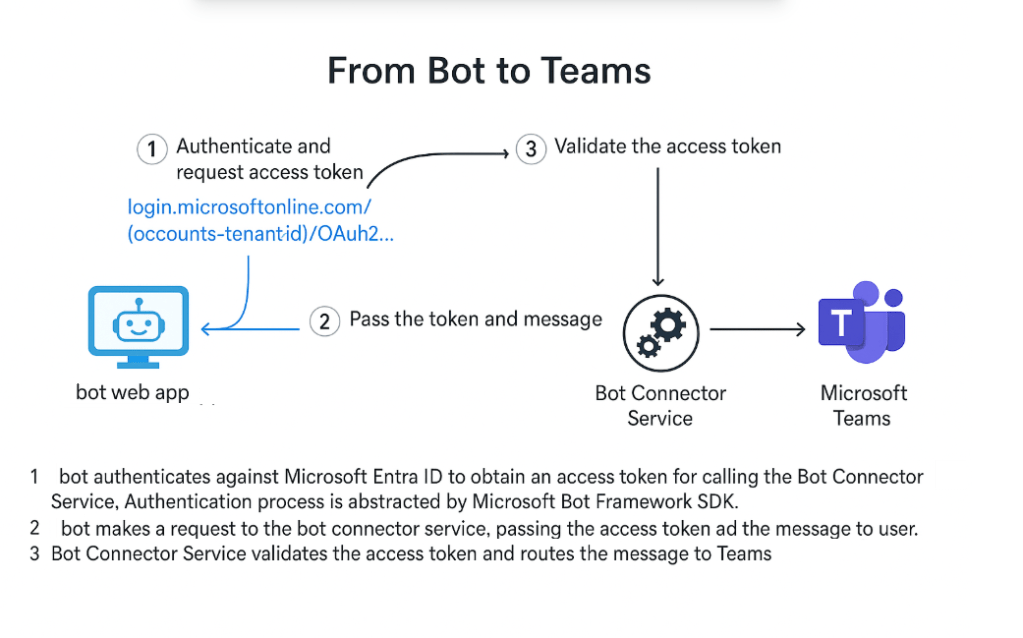
1. User sends a message in Teams: A user types a message or interacts with the bot through Microsoft Teams (this could be in a one-on-one chat or a channel conversation). The message is sent from the Teams client to the Microsoft Teams service in the cloud, as with any Teams message.
2. Teams forwards the message to Azure Bot Service: The Teams cloud service determines the message is intended for a bot (using the bot’s App ID registered in the Teams app manifest). Teams do not directly contact the bot’s web service. Instead, Teams sends the message to the Azure Bot Service (Bot Connector) endpoint associated with Teams (often an HTTPS endpoint under the domain smba.trafficmanager.net or api.botframework.com) 1. Along with the message content, Teams includes an authentication token (a JWT) proving that this request is coming from an authorized Teams client and identifying the tenant/user.
- Security: Before forwarding, the Teams service must authenticate with Azure Bot Service. Teams obtain an Azure AD access token for the Bot Framework (using the bot’s App ID as the resource audience). The Bot Connector Service will validate this token on receipt 1. If the token or App ID is invalid or the bot is not authorized for that tenant, the request would be rejected.
3. Bot Connector Service receives and authenticates the message: Azure Bot Service’s Bot Connector (running in Microsoft’s cloud) receives the HTTPS message from Teams. It first validates the authentication token included by Teams to ensure the call is from a trusted source (i.e., from Teams on behalf of your bot). This involves checking the token’s signature and claims (e.g., issuer, App ID, tenant) against Azure AD and the bot’s registration. If the token is not valid or the Teams client isn’t allowed, the Bot Service returns an error (e.g., HTTP 403 Forbidden) and does not forward the message 1. When valid, the Bot Connector proceeds to process the message.
- The Bot Connector also performs message normalization: it converts the incoming Teams message (which might have Teams-specific schema or MIME parts) into a standard Bot Framework Activity object that the bot application understands. This ensures consistency, so the bot sees messages from any channel in a unified format.
4. Azure Bot Service forwards the message to the bot’s endpoint: Once authorized, Azure Bot Service looks up the bot’s Messaging Endpoint URL that was configured in the bot’s Azure registration (during bot setup). This endpoint is the address of the bot’s application (for example, an Azure Function URL or an App Service URL, possibly fronted by APIM). The Bot Connector then makes an HTTPS POST request to the bot’s endpoint, containing the normalized message (activity).
- If API Management is in use, the messaging endpoint URL in Azure Bot Service would be the APIM gateway’s URL (for example, https://bot.yourdomain.com/api/messages
- Note: The bot’s messaging endpoint must be reachable on the public internet so that Azure’s Bot Service can call it. If the bot is hosted in a private network, this is achieved by exposing it via a service like APIM or Azure Application Gateway in front of it. Azure Bot Service will call whatever public URL is registered as the bot’s endpoint. (If no public endpoint is available, Teams cannot reach the bot.)
5. API Management forwards the request to the bot (if applicable): Upon receiving the POST request at the gateway (APIM), any configured policies (authentication, throttling, IP filtering, etc.) are executed. APIM then routes the request to the backend bot service. In our architecture, APIM is aware of the bot’s actual host (for example, an internal URL or IP of the bot’s App Service). The message is forwarded through Azure’s internal network from APIM to the bot application. At this point, the message has reached the bot’s actual code.
6. Bot application processes the message: The bot’s code running in the bot application receives the incoming activity (for example, via an HTTP POST to the /api/messages controller if using the Bot Framework SDK). The bot logic runs – for instance, it may analyze the user’s message, call other APIs or services, and decide how to respond. This could involve multiple turns or just one response. For example, the bot might receive “Hello” and decide to respond with “Hello there!”
7. Bot prepares a response (outgoing message): To reply, the bot application doesn’t directly contact the Teams client. Instead, the bot will send the response through the Azure Bot Service (so that it can reach Teams). Using the Bot SDK, the bot code will create one or more Activity objects as replies. When the bot calls the send or reply method in the SDK (e.g., TurnContext.SendActivityAsync in C#), the SDK under the hood knows how to forward this to Azure Bot Service:
- The outgoing call is sent to the “reply URL” (service URL) that was included in the incoming message’s data. In Teams, the service URL typically looks like https://smba.trafficmanager.net/amer/
- Authentication (Bot to Azure): The bot’s SDK uses the bot’s Azure AD credentials (App ID and secret or certificate) to obtain a JWT token from Azure AD that authorizes the bot to call the Bot Connector Service’s reply endpoint. In other words, the bot authenticates itself when sending messages, just as Teams did. The Bot Framework SDK handles this by caching a token or fetching a new one via the OAuth 2.0 client credentials flow to Azure AD (targeting the Bot Service resource URI) 1. This token is attached to the outgoing HTTP request carrying the bot’s message.
8. Bot’s response is sent to Azure Bot Service: The bot’s outgoing message, with the appropriate auth token, is posted to the Azure Bot Service (Bot Connector) at the service URL. Azure Bot Service receives it and validates the bot’s JWT to ensure the request indeed comes from the genuine bot identity (and not an imposter) 1. Upon validation, the Bot Connector transforms the outgoing Activity into the Teams message schema (if any transformation is needed, e.g. ensuring Markdown or attachments conform to Teams) 1.
9. Azure Bot Service delivers the message to Teams: The Bot Connector now takes the bot’s response and sends it to the Microsoft Teams service through the pre-established channel. Essentially, Azure’s Bot Service calls the Teams backend service, handing off the message along with metadata (like which team/chat and user it’s intended for). Since Teams already has an open channel with Azure Bot Service (from step 2), the message is delivered over that channel.
10. Teams displays the bot’s response to the user: The Teams cloud service forwards the bot’s message down to the user’s Teams client where the conversation is happening. The user sees the bot’s reply appear in the chat. This completes the round-trip of the message.
Throughout this flow, Azure Bot Service orchestrates the message routing – Teams only ever calls Azure Bot Service, and the bot only ever communicates with Azure Bot Service. Neither the Teams client nor service calls the bot’s API directly, and the bot does not call the Teams API directly. This indirection allows Microsoft to handle security and reliability. All calls are HTTPS REST calls under the hood (or WebSocket connections in some scenarios), secured with tokens at each step.
Role of Azure API Management (APIM) in the Architecture
When a bot is hosted in a restricted network (for example, an internal VNet or without a direct public endpoint), a publicly accessible endpoint is still needed for Azure Bot Service to deliver messages. Azure API Management (APIM) is one solution to bridge this gap securely. In our architecture:
- APIM as a Proxy: APIM serves as the front door for the bot’s messaging endpoint. Instead of registering the bot’s Azure App Service URL (which might be private) with Azure Bot Service, we register a custom domain on APIM (which is internet-accessible) as the messaging endpoint 4. For example, Azure Bot Service might call https://bot.contoso.com/api/messages
- Network Integration: APIM can be configured in External VNet mode with a public IP or domain, while maintaining connectivity to the internal network. This allows it to accept outside traffic and route it to the bot on the private side. Effectively, APIM resides at the boundary of public and private, sparing us from exposing the bot server directly.
- Security and Policy Enforcement: APIM can enforce extra security via policies. For example, it can require subscription keys or JWT validation, rate-limit requests, or block requests that don’t meet certain criteria. In a Teams bot scenario, one could use APIM policies to verify that incoming requests truly originate from Azure Bot Service/Teams by checking the JWT token or the known IP ranges. It could also implement multi-tenant restrictions – e.g., only allow tokens from your organization’s tenant (by inspecting the x-ms-tenant-id header that Teams includes). These measures reduce the risk of unauthorized access if someone tries to spoof requests to the bot.
- Transformation and Monitoring: Optionally, APIM might log and monitor traffic or even modify requests/responses if needed (though typically the Bot Connector payloads should not be altered). It provides a centralized point to observe usage analytics for your bot’s calls.
In summary, APIM’s role is to expose a secure, controlled public interface for a bot that is otherwise private. If the bot were deployed in a fully public App Service, APIM might be optional; but for private deployments it becomes essential. Note that whether you use APIM, Azure Application Gateway, or Azure Front Door, the requirement is the same: Teams (being a public cloud service) requires a publicly reachable URL to connect to your bot. Without some form of public ingress, Teams cannot communicate with the bot. APIM is simply one of the recommended solutions to achieve this ingress in a secure way.
Private Endpoints for Bot and Token Sub-Resources
Azure Bot Service supports Azure Private Link (private endpoints) for two specific sub-resources: “Bot” and “Token.” This feature is mainly relevant for scenarios where you use the Direct Line App Service Extension or have strict network isolation requirements for your bot. It allows certain traffic between your bot and the Bot Framework services to go through private Azure network pathways instead of the public internet.
- Bot Sub-resource Private Endpoint (\”Bot\”): This private endpoint is used primarily to allow inbound channel traffic via a VNet for the bot. For example, the Direct Line App Service Extension (an on-prem or VNet-isolated client endpoint for bots) can use a private endpoint to reach the bot without leaving the network. When you enable a Private Endpoint of type “Bot” for your Azure Bot resource, Azure will create a DNS record like yourBotName.botplinks.botframework.com that resolves to a private IP address inside your virtual network. This means any allowed client that queries that DNS (and is inside your VNet) will reach the bot’s endpoint via an internal address. All messages to and from the bot through that path stay on Azure’s internal network.
- In simpler terms, the “Bot” private endpoint projects the bot’s channel endpoint into your VNet. For example, a user using a company-internal client (via Direct Line) could connect to the bot without internet. However, note: When using Microsoft Teams as the channel, Teams is an external service and cannot utilize your private endpoint. You cannot restrict Teams->Bot traffic to a private link only, because Teams (cloud) must reach Azure Bot Service publicly. In fact, if you were to enforce a private endpoint on the Bot resource and remove public access, Teams would be unable to communicate with the bot. The Azure Bot Service resource itself must remain accessible to the Teams service (public internet) for the integration to work. Private endpoints for the “Bot” sub-resource are thus more applicable to Direct Line or custom client scenarios, or perhaps testing within a corporate network.
- Token Sub-resource Private Endpoint (\”Token\”): This private endpoint allows your bot (and the Direct Line extension, if used) to access the Bot Framework Token Service privately. The Bot Framework’s token service is used in scenarios where the bot needs to exchange or retrieve OAuth tokens (for example, when a user logs in via an OAuth card, the bot can retrieve the user’s access token from this service). By enabling the “Token” sub-resource, Azure creates a DNS like yourBotName.bottoken.botframework.com mapped to a private IP in your VNet. Now, if your bot’s code tries to reach the token service URL, it will resolve to an internal address and stay within the VNet.
- Role in the message flow: In our Teams chat flow, a common use of the token service is when the bot needs to get an authentication token to call back to Azure Bot Service or to perform OAuth on behalf of the user. For instance, as described earlier, the bot uses Azure AD to get a token for calling the Bot Connector. In a fully isolated environment, the bot’s outbound call to Azure AD and Bot Framework token endpoints could be blocked by network rules. With the Token private endpoint, the bot can obtain necessary tokens (e.g., Bot Connector auth tokens or user tokens stored in Bot Framework) without breaking isolation. All such token requests (e.g., to login.microsoftonline.com or token.botframework.com) can be configured to go through private links or allowed service tags, ensuring no direct internet egress. Essentially, the Token private endpoint is about securely handling authentication flows in a private network context.
Summary of Private Endpoint usage: Private endpoints for Bot/Token sub-resources are a way to “project” Azure’s bot services into your virtual network. They create internal touchpoints so that:
- The bot’s inbound messages (from certain channels like Direct Line) can be received internally (.botplinks.botframework.com address), and
- The bot’s outbound calls for token and config can be made internally (.bottoken.botframework.com address).
All traffic over these private endpoints stays on Microsoft’s backbone network and does not traverse the public internet. This helps meet strict security and compliance requirements.
In our scenario (a Teams bot with APIM), we primarily benefit from the Token private endpoint if our bot is in a locked-down network. The bot’s code would use the private DNS for token service, so when it performs OAuth or fetches a user token, it doesn’t need open internet access. The Bot private endpoint is less directly useful for Teams (since Teams can’t go through the private link), but if we had internal clients (or in future scenarios where Azure Bot Service itself might be accessible via private link from Teams’ side, which currently it isn’t), it could be applicable. For now, remember that enabling a private endpoint on the Azure Bot resource will block external channels like Teams if not configured with a public path – Microsoft’s guidance is that the Bot Service resource must remain public for Teams bots.
Authentication and Token Flow Details
Security is critical in the Teams-Bot architecture. Here’s how authentication is handled at each step and the role of “token” services:
- Teams to Bot Service Authentication: Teams uses Azure AD to obtain a token for the Bot Service. This token is included in the Authorization header of messages sent to Azure Bot Service. The Bot Connector is configured to trust tokens issued for its specific audience (api.botframework.com or the Azure AD App ID of the bot) and will validate signature and claims. Only if valid does it forward the message. This prevents unauthorized parties from directly invoking your bot’s endpoint via the Bot Connector.
- Bot Service to Bot Authentication: When Azure Bot Service calls your bot’s endpoint, it includes a JWT token in the HTTP Authorization header as well. This token is generated by Azure Bot Service to identify itself (and the incoming user) to your bot. Your bot, or more commonly the Bot Framework Authentication Library in the SDK, should validate this incoming token. It uses Microsoft’s open ID metadata (from the Bot Framework) to ensure the token is from Azure Bot Service and that the app ID matches your bot. If validation fails, your bot should reject the call. The Bot Framework SDK typically handles this automatically, so developers just need to supply the correct credentials in code.
- Bot to Bot Service Authentication (for outgoing messages): When your bot sends a message or proactively notifies a user, it needs to authenticate to the Bot Service. The bot’s credentials (App ID and secret) are used to request a token from Azure AD (the OAuth 2.0 client credentials flow for the resource https://api.botframework.com
- Bot Framework Token Service (OAuth flows): If your bot uses OAuth Cards or SSO with Teams, when the user signs in, the Bot Framework Token Service is what stores the user’s token (to services like Graph, Google, etc.) and later provides it to the bot upon request. The bot may call an API like GetUserToken via the Bot Framework SDK, which under the hood contacts *.bottoken.botframework.com to retrieve the user’s access token. This is where the Token private endpoint is helpful – it allows this call to happen without internet egress if configured. The Token Service will ensure the user has consented and completed the auth and then return the token to the bot, which the bot can use to call downstream APIs.
In summary, token sub-resources and authentication flows ensure that all parties (Teams, Bot Service, and the bot itself) trust each other. Private endpoints for these token exchanges are an optional enhancement to keep the traffic internal.
Common Challenges and Mitigations in Teams Bot Setup
Setting up an Azure Bot Service for Teams involves several configuration steps and network considerations. Here are common challenges and how to mitigate them:
- Challenge 1: Bot endpoint not reachable or not authorized (HTTP 401/403 errors). This often happens if the bot’s messaging endpoint is not correctly configured or secured. For instance, if your bot is in a private network without a proper gateway, Azure Bot Service cannot reach it, or if the bot’s app ID/secret is misconfigured in the code, authentication will fail. Mitigation: Ensure the messaging endpoint is a publicly reachable URL with a valid SSL certificate. Use solutions like APIM or Application Gateway to expose the endpoint if the bot is hosted privately. Also, double-check that the bot’s App ID and secret (or certificate) are correctly installed in your bot application configuration so that authentication tokens are handled properly. Using the Bot Framework SDK and its provided authentication handlers is recommended to avoid manual token mistakes.
- Challenge 2: Network isolation vs. Teams connectivity. Organizations often want to completely isolate the bot in a VNet, but as discussed, Microsoft Teams is an external service. If one were to enable a private endpoint on the Bot Service without any public interface, Teams would no longer be able to communicate with the bot. Mitigation: Always provide a selective public ingress for Teams. This could be locked down to just the necessary Azure Bot Service traffic. For example, use Azure Firewall or NSG rules to allow only Azure Bot Service IP ranges or service tag through to your bot’s endpoint. Another approach is to use APIM or a WAF to check the Host headers or JWT issuer to ensure only legitimate Teams traffic reaches the bot. By doing so, you maintain isolation from general internet traffic but still permit the bot to serve Teams. Azure provides service tags like AzureBotService and documentation on required IP ranges that you can whitelist if not using Private Link.
- Challenge 3: Tenant or user restrictions. Your bot might be intended only for your company’s Teams tenant, yet a publicly exposed endpoint could technically receive messages from any tenant if someone installed the bot there. By default, the Azure Bot registration can be single-tenant or multi-tenant. If multi-tenant, foreign tenant users might attempt to use it. Mitigation: If this is a concern, register your bot’s Azure AD application as single-tenant (so only users in your AAD can access it). Additionally, implement checks in the bot or APIM layer to verify the tenant ID in incoming requests. As suggested, APIM or WAF policies can reject requests that don’t come from your specific tenant by inspecting the x-ms-tenant-id header that Teams includes. This ensures even if someone external knows your bot ID, they cannot use it.
- Challenge 4: Configuring Teams app manifest and Azure registration properly. You need to create a Teams app (with an App ID that matches your Azure Bot’s App ID) and upload it to Teams (or publish it). Mistakes in the manifest (like wrong bot ID or missing permission declarations) can cause the Teams client not to route messages to your bot. Mitigation: Follow Microsoft’s documentation for Teams Bot application registration. Ensure the IDs match and that the bot is added to Teams (for personal scope, one-to-one chat, you or users must install the bot; for team scope, it must be added to the team). Use the Teams Developer Portal to test your app registration.
- Challenge 5: OAuth and token exchange issues. If your bot uses OAuth (e.g., for Graph API calls on behalf of the user), misconfiguring the OAuth connection or not handling the signin/tokenExchange activities can lead to login loops or failures. Mitigation: Use Azure Bot Service’s OAuth Connection feature and test it with the Bot Framework Emulator. Ensure the bot is handling the OAuth callbacks. The Bot Framework SDK provides middleware for Teams SSO that should be utilized. Also, if your bot is in a VNet and you use private endpoints, verify that the Token service private endpoint is working or that you have allowed the bot to call the necessary token URLs; otherwise, the bot may hang when trying to exchange tokens.
- Challenge 6: Performance and scaling considerations. If using APIM or a gateway, improper scaling or configuration could become a bottleneck (e.g., APIM throughput limits might throttle bot messages under high load). Mitigation: Choose an appropriate APIM tier that can handle expected traffic, and consider using Azure Functions or App Service with auto-scale for your bot application. Monitor the end-to-end latency (Teams -> bot -> Teams). In high-demand scenarios (like large group chats), ensure your bot responds quickly to avoid Teams timing out (the default timeout for bot responses is about 15 seconds).
Best Practices for a Secure and Reliable Teams Bot
To conclude, here are best practices combining the architectural elements we discussed:
- Use a Gateway for Private Bots: If your bot’s backend is not openly accessible, use Azure APIM or an Application Gateway with WAF to publish the bot’s messaging endpoint securely. Configure custom domains and SSL correctly and keep the backend service isolated behind it. This gives you control over inbound traffic.
- Apply Network Security Restrictions: Whether or not you use Private Link, enforce network rules so that only traffic from Azure Bot Service (and necessary Azure services) reaches your bot. Microsoft publishes https://learn.microsoft.com/en-us/azure/bot-service/bot-service-ip-range for the Bot Connector service. Use service tags like AzureBotService where possible. If using Private Endpoints for Direct Line or token, ensure the private DNS zones are configured so your bot and VNet clients resolve the correct addresses.
- Enable Private Endpoints for Token Service if needed: For a highly secure solution, consider enabling the “Token” private endpoint for your bot resource. This ensures that your bot’s calls to acquire tokens (for OAuth or to send messages) go through a private channel. Combine this with restricting your bot’s outbound internet access (no open internet, only allowed to Azure AD and Bot Service via Private Link or specific allowances). Keep in mind the “Bot” private endpoint is not used by Teams, so weigh its value based on whether you have internal clients (it’s most useful for Direct Line scenarios).
- Leverage the Bot Framework SDK Security: Do not attempt to handle JWT validation or token acquisition manually unless absolutely necessary. The official SDKs (available for C#, Node.js, etc.) have built-in classes to validate incoming requests from Azure Bot Service and to acquire outbound tokens for calling back. This reduces errors. Always configure the app ID and password in your bot application so that the authentication flows operate correctly.
- Test with the Bot Framework Emulator and in Teams: Before deploying to production, test your bot with the Bot Emulator (in localhost with something like ngrok for tunneling) to ensure it handles messages and auth. Then test in Teams (in a controlled environment or with a few users) to observe the full flow. This can surface any issues with your Azure registration, manifest, or networking early.
- Monitor and Log: Use Azure Application Insights (or your logging system) to capture incoming messages, responses, and any errors/exceptions in your bot. Monitoring the APIM logs and Bot Service telemetry can help identify if messages are failing to deliver. For example, if you see no traffic hitting your bot, check if Azure Bot Service logged errors (the Azure Portal “Channels” blade can show some error messages for delivery issues).
- High Availability: Azure Bot Service itself is a global, fully managed service. Ensure your bot backend is also highly available. Deploy in multiple regions if necessary (though note that Teams will direct messages to the single registered endpoint; you might need a traffic manager or similar solution for active-active backends).
By following these practices, you will have a robust architecture where Microsoft Teams users can chat with your Azure Bot reliably, and your network exposure is minimized to just what’s needed. Azure Bot Service, in combination with APIM and Private Link for tokens, provides a flexible yet secure approach to implement enterprise-grade bots on Teams.

 Reverse Engineering