This is a second part of a series of posts where I am writing my learning building a GitHub Copilot extension, RAG, using your own model etc.

- First part here
- Part 3 here.
Introduction: Enhancing GitHub Copilot with Skillsets
In the first part of this series, we explored how to extend GitHub Copilot by integrating it with Azure DevOps through a backend API. Now, in this second part, we’ll take things further by leveraging GitHub Copilot Skillsets to enable AI-powered actions that enhance developer productivity.
What are GitHub Copilot Skillsets?
A skill in GitHub Copilot is a specialized tool that the AI can invoke to perform specific tasks—whether it’s retrieving data, executing commands, or interacting with external services. A skillset is a collection of up to five such skills, bundled together to extend Copilot’s capabilities.
By using skillsets, we can streamline Copilot’s ability to interact with external systems like Azure DevOps. Instead of manually navigating through different services, developers can simply ask Copilot to:
- Create and update work items (epics, features, tasks).
- Query existing work items directly from an Azure DevOps organization.
- Enhance workflow automation with AI-driven assistance.
Use Case: Automating Azure DevOps with Copilot Skills
In this article, we will demonstrate how to use GitHub Copilot Skillsets to create, update, and query work items from an Azure DevOps organization. By integrating Copilot with Azure DevOps, we can allow developers to manage their backlog efficiently—without leaving their development environment.
Through this, we’ll see how Copilot transforms from a coding assistant into an AI-powered DevOps companion, capable of handling administrative tasks, fetching critical information, and automating workflows—all with simple, natural language commands. Let’s dive in! 🚀
Extending API Endpoints for GitHub Copilot Integration
In the first part, we implemented an initial API endpoint that allows GitHub Copilot to talk to user as an Agent. Now, we will expand our backend by adding more API endpoints to enhance functionality – as the Skillsets.
    public class WorkItemCreateEndpoint(IServiceProvider ServiceProvider) : EndpointBase(ServiceProvider)
    {
        protected async override Task HandleRequestCoreAsync(
            MemoryStream bodyStream, CommonExtensions.GitHubUserContext userContext,
            HttpContext httpContext, ILogger logger, CancellationToken cancellationToken)
        {
            var payload = await DeserializePayloadAsync<WorkItemCreatePayload>(bodyStream, cancellationToken);
            if (payload == null || string.IsNullOrWhiteSpace(payload.ProjectName))
            {
                httpContext.Response.StatusCode = 400;
                await httpContext.Response.WriteAsync("Bad Request (project name is required)", cancellationToken);
                return;
            }

            var jsOptions = GetServiceProvider().GetRequiredService<JsonSerializerOptions>();
            var devOpsService = GetServiceProvider().GetRequiredService<DevOpsService>();

            var createdWorkItem = await devOpsService.CreateWorkItemAsync(payload.ProjectName, payload, cancellationToken);

            await httpContext.Response.WriteAsJsonAsync(createdWorkItem, jsOptions, cancellationToken);
        }
    }
The first implemented endpoint, WorkItemCreateEndpoint, is responsible for handling work item creation requests. It does the following:
- Deserializes the incoming request payload.
- Validates the project name to ensure a proper request.
- Uses the
DevOpsServiceto create a new work item in the specified Azure DevOps project. I am ignoring the details of this service, essentially it is just issuing a REST API call to Azure DevOps to create work items of a given type. - Returns the created work item as a JSON response.
Now, let’s build additional API endpoints to query, update, and Linking work items, enabling a more powerful Copilot integration with Azure DevOps.
To enable GitHub Copilot to modify existing work items in Azure DevOps, we introduce a new API endpoint: WorkItemUpdateEndpoint. This endpoint allows updating work items by their ID within a specified project.
public class WorkItemUpdateEndpoint(IServiceProvider ServiceProvider) : EndpointBase(ServiceProvider)
{
    protected async override Task HandleRequestCoreAsync(
        MemoryStream bodyStream, CommonExtensions.GitHubUserContext userContext,
        HttpContext httpContext, ILogger logger, CancellationToken cancellationToken)
    {
        var payload = await DeserializePayloadAsync<WorkItemUpdatePayload>(bodyStream, cancellationToken);
        if (payload == null || string.IsNullOrWhiteSpace(payload.ProjectName))
        {
            httpContext.Response.StatusCode = 400;
            await httpContext.Response.WriteAsync("Bad Request (project name is required)", cancellationToken);
            return;
        }

        var jsOptions = GetServiceProvider().GetRequiredService<JsonSerializerOptions>();
        var devOpsService = GetServiceProvider().GetRequiredService<DevOpsService>();

        var updatedWorkItem = await devOpsService.UpdateWorkItemAsync(payload.ProjectName, payload.Id, payload, cancellationToken);

        await httpContext.Response.WriteAsJsonAsync(updatedWorkItem, jsOptions, cancellationToken);
    }
}
How It Works
- Deserializes the request payload, extracting the project name and work item details.
- Validates the input, ensuring that the project name is provided.
- Uses
DevOpsServiceto update the specified work item in Azure DevOps. - Returns the updated work item as a JSON response.
This API enables GitHub Copilot to not only create but also modify existing work items dynamically. By integrating this with Copilot skillsets, users can perform updates using natural language commands, streamlining the Azure DevOps workflow.
In the next section, we will add an API to query work items, further extending our integration capabilities.
To enable GitHub Copilot to retrieve work items from Azure DevOps, we introduce the WorkItemQueryEndpoint. This API allows users to fetch work items based on specific criteria such as work item type and state within a given project.
public class WorkItemQueryEndpoint(IServiceProvider ServiceProvider) : EndpointBase(ServiceProvider)
{
    protected async override Task HandleRequestCoreAsync(
        MemoryStream bodyStream, CommonExtensions.GitHubUserContext userContext,
        HttpContext httpContext, ILogger logger, CancellationToken cancellationToken)
    {
        var payload = await DeserializePayloadAsync<WorkItemQueryPayload>(bodyStream, cancellationToken);
        if (payload == null || string.IsNullOrWhiteSpace(payload.ProjectName))
        {
            httpContext.Response.StatusCode = 400;
            await httpContext.Response.WriteAsync("Bad Request (project name is required)", cancellationToken);
            return;
        }

        var jsOptions = GetServiceProvider().GetRequiredService<JsonSerializerOptions>();
        var devOpsService = GetServiceProvider().GetRequiredService<DevOpsService>();
        var queryResult = await devOpsService
            .QueryWorkItemTypesAsync(payload.ProjectName, payload.WorkItemType, payload.State, cancellationToken);

        httpContext.Response.ContentType = "text/event-stream";
        httpContext.Response.Headers.TryAdd("Transfer-Encoding", "chunked");
        await httpContext.Response.WriteAsJsonAsync(queryResult, jsOptions, cancellationToken);
    }
}
How It Works
- Deserializes the request payload, extracting the project name, work item type, and state.
- Validates the input, ensuring that the project name is provided.
- Calls
DevOpsServiceto query for matching work items. - Streams the results back to the client in SSE (Server-Sent Events) format, allowing real-time updates.
With this API, GitHub Copilot can fetch and display work items from Azure DevOps, making it easy for users to retrieve relevant tasks, epics, and features. Combined with the create and update endpoints, we now have a complete integration that allows seamless interaction with Azure DevOps via Copilot skills.
Creating a GitHub App for Copilot Skillsets
Now that we have built the necessary API endpoints, the next step is to create a GitHub App that will allow GitHub Copilot to utilize these endpoints as part of a skillset. This process is similar to what we did in Part 1 when setting up a GitHub App, but this time, we will explicitly configure it as a Skillset App. Follow the official instruction to configure the app.
Configuring Skills
In the app configuration page, navigate to the Skills section. Here, we will create four skills, each referring to the API endpoints configured in the previous steps.
Work Item Creation Skill
To enable the creation of work items in Azure DevOps, we need to add a new skill. In the Skills section of the app configuration page, create a skill and name it “Create work item”. This skill will define the necessary parameters required to generate a work item, such as project name, work item type, title, description, and acceptance criteria.
Below is the JSON definition for the skill:
{
  "type": "object",
  "properties": {
    "projectName": {
      "type": "string",
      "description": "Azure DevOps project name"
    },
    "workItemType": {
      "type": "string",
      "description": "Optionally provided work item types",
      "enum": [ "User Story", "Product Backlog Item", "Epic", "Feature", "Task", "Bug" ]
    },
    "title": {
      "type": "string",
      "description": "The title of work item"
    },
    "description": {
      "type": "string",
      "description": "The description of work item"
    },
    "acceptanceCriteria": {
      "type": "string",
      "description": "Acceptance Criteria only applicable in PBI and User Story."
    }
  }
}
Work Item Update Skill
To allow updating existing work items in Azure DevOps, we need to add a new skill. In the Skills section of the app configuration page, create a skill and name it “Update work item”. This skill will define the necessary parameters required to modify an existing work item, including the project name, work item ID, title, description, and acceptance criteria.
Below is the JSON definition for the skill:
{
  "type": "object",
  "properties": {
    "projectName": {
      "type": "string",
      "description": "Azure DevOps project name"
    },
    "id": {
      "type": "number",
      "description": "Work item ID is required to update the work item"
    },
    "title": {
      "type": "string",
      "description": "The title of work item"
    },
    "description": {
      "type": "string",
      "description": "The description of work item"
    },
    "acceptanceCriteria": {
      "type": "string",
      "description": "Acceptance Criteria only applicable in PBI and User Story. Not applicable for any other work item types"
    }
  }
}
Work Item Query Skill
To enable querying work items based on their state and type in Azure DevOps, we need to add a new skill. In the Skills section of the app configuration page, create a skill and name it “Query work items”. This skill will allow filtering work items by project name, state, and work item type.
Below is the JSON definition for the skill:
{
  "type": "object",
  "properties": {
    "projectName": {
      "type": "string",
      "description": "Azure DevOps project name"
    },
    "state": {
      "type": "string",
      "description": "The state(s) of work items to be queried",
      "enum": [ "New", "Active", "Resolved", "Closed", "Done", "Approved", "Committed" ]
    },
    "workItemType": {
      "type": "string",
      "description": "Optionally provided work item types",
      "enum": [ "User Story", "Product Backlog Item", "Epic", "Feature", "Task", "Bug" ]
    }
  }
}
Testing it
That is all we had to do. Now lets test this from GitHub UI:

Let’s test the work item creation with a prompt:

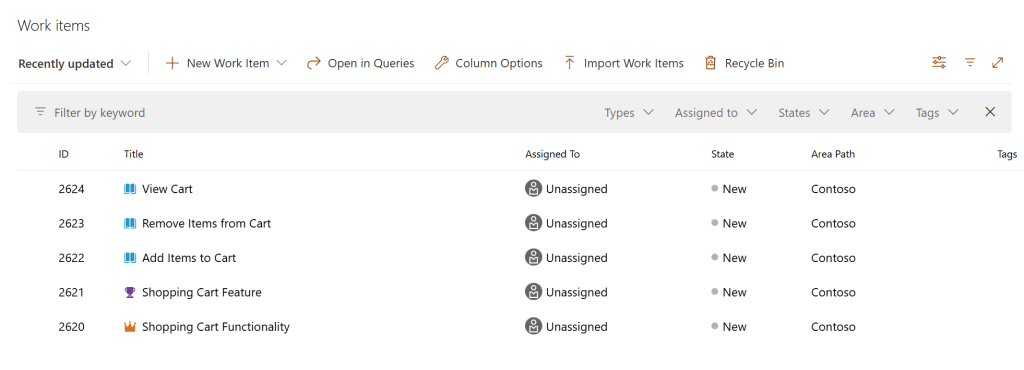
Sure enough, I see these work items created into the Azure DevOps project.
Conclusion
In this article, we demonstrated how to extend GitHub Copilot’s capabilities by integrating third-party systems—specifically Azure DevOps—into its skill set. By defining a few API endpoints and writing simple JSON configurations, we enabled Copilot to understand and execute workflow automation tasks using natural language.
This approach showcases the power of GitHub Copilot as more than just a code assistant; it can act as a workflow orchestrator, seamlessly bridging the gap between AI-driven suggestions and real-world automation. Whether it’s creating, updating, or querying work items in Azure DevOps—or integrating with any other system—this method provides a scalable way to infuse AI into daily engineering tasks.
With just a bit of configuration, we unlocked the ability to interact with external systems using plain English, reducing manual effort and streamlining workflows. This is just the beginning—imagine what else can be automated by expanding this concept to CI/CD pipelines, cloud resource management, or issue tracking across multiple platforms. The future of AI-assisted development isn’t just about writing code—it’s about redefining how we work. 🚀

 Reverse Engineering