Integrating bots with Microsoft Teams is a powerful way to improve collaboration and automate workflows. However, ensuring secure access, network isolation, and controlled data flows is crucial, especially in sensitive environments like financial or healthcare applications. In this blog post, I’ll walk through a secure setup I recently implemented, showcasing how to create an Azure Bot securely integrated with Microsoft Teams using Azure Bot Service, Azure Container Apps, API Management, and private endpoints.
Introduction to Azure Bot Service and Bot Framework
Azure Bot Service provides a streamlined framework for building, testing, and deploying intelligent bots that connect with users through various channels, including Microsoft Teams. It leverages the Bot Framework SDK, which allows developers to create bots in multiple programming languages, including .NET, for different conversational experiences. Here, we use the Bot Framework to build a .NET-based bot.
Creating a bot using Bot framework
Bots provide an experience that feels less like using a computer and more like dealing with a person—or intelligent robot. You can use bots to shift simple, repetitive tasks—such as taking a dinner reservation or gathering profile information—onto automated systems that may no longer require direct human intervention. Users converse with a bot using text, interactive cards, and speech. A bot interaction can be a quick answer to a question or an involved conversation that intelligently provides access to services.
One way to think of a bot is as a web application that has a conversational interface. Your users connect to your bot through a channel, such as Facebook, Slack, Microsoft Teams, or a custom application.
- Depending on how the bot is configured and how it’s registered with the channel, interactions can be in text or speech and can include images and video.
- The bot processes the user’s input to interpret what the user has asked for or said.
- The bot evaluates input and performs relevant tasks, such as ask the user for additional information or access services on behalf of the user.
- The bot responds to the user to let them know what the bot is doing or has done.
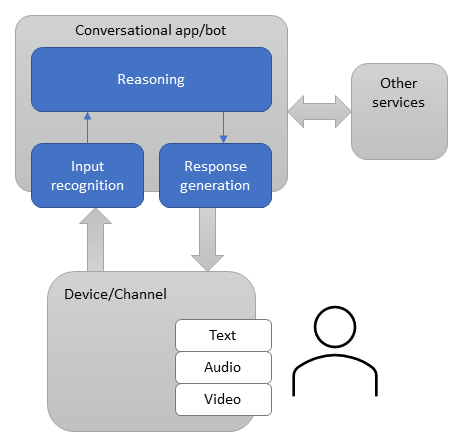
Bots are often implemented as a web application, hosted in Azure and using APIs to send and receive messages. What’s in a bot varies widely depending on what kind of bot it is and what its purpose is. A bot can receive messages and echo them back to the user, with little code involved. A more complex bot can rely on various tools and services to deliver richer experiences on a wide variety of platforms.
Microsoft has plenty of samples for Bot written in different languages. You can follow the quick start to create a basic bot. I will pick the Adaptive Bot Sample from GitHub.
Network Isolation for Enhanced Security
For this project, security was a priority, and that meant isolating the bot’s backend in a private network. This network isolation ensures that only approved resources and services can communicate with the bot’s backend.
Azure Virtual Network (VNet) acts as the foundation, where I set up the network security layers for the bot’s backend. By deploying the bot’s backend in an isolated VNet, we block public access and control inbound and outbound traffic to sensitive components.
I will be hosting this Bot into Azure Container Apps. I have used Bicep to deploy the Container apps (including Container registry, user assigned managed identity, virtual network etc.) that is secure and integrated to a virtual network.
resource environment 'Microsoft.App/managedEnvironments@2022-03-01' = {
  name: envrionmentName
  location: location
  dependsOn: [
    logAnalytics
  ]
  properties: {
    daprAIInstrumentationKey: appInsightKey

    vnetConfiguration: {
      internal: true
      infrastructureSubnetId: infrastructureSubnetId
    }

    appLogsConfiguration: {
      destination: 'log-analytics'
      logAnalyticsConfiguration: {
        customerId: logAnalytics.properties.customerId
        sharedKey: logAnalytics.listKeys().primarySharedKey
      }
    }
  }
}
Finally adding a API management (External) that can act as a gateway for the container app.
Exposing the API Through Azure API Management
To allow secure, controlled access to the bot’s backend, I exposed the API through Azure API Management (APIM). APIM serves as a gateway, accepting traffic from the internet while securely relaying requests to the internal Container App through the VNet. This architecture provides several security advantages:
- Traffic Control: APIM can authenticate, authorize, and monitor inbound traffic.
- Network Security: Only traffic coming from APIM reaches the Container App, reducing the risk of unauthorized access.
- Enhanced Monitoring: APIM’s built-in policies allow rate limiting, IP filtering, and logging, providing insights into API usage and potential security issues.
The diagram looks like the following diagram:

The full Bicep templates can be found in here.
We now have our Bot endpoint is exposed security via API management.
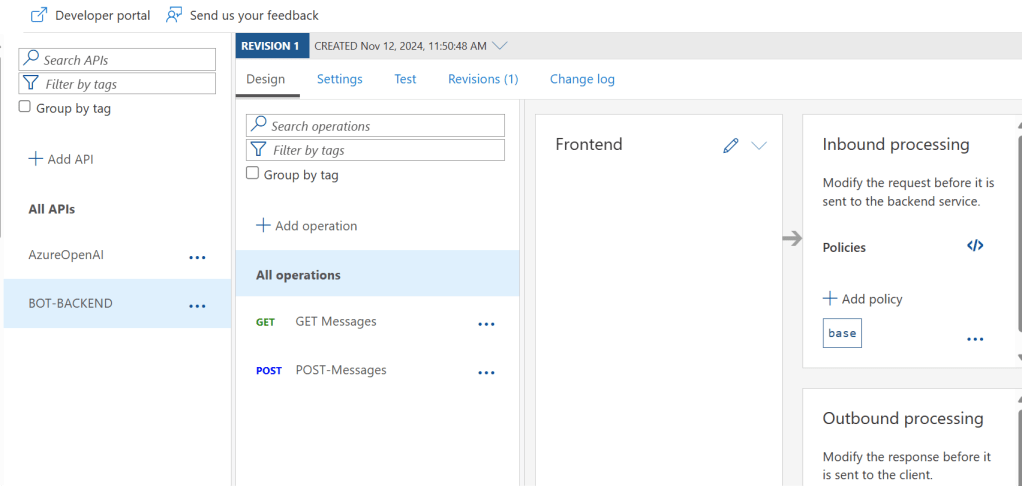
Azure API Policy
We will add inbound policy to allow CORS to the API
    <inbound>
        <cors allow-credentials="true">
            <allowed-origins>
                <origin>https://ms.portal.azure.com</origin>
            </allowed-origins>
            <allowed-methods>
                <method>*</method>
            </allowed-methods>
            <allowed-headers>
                <header>*</header>
            </allowed-headers>
            <expose-headers>
                <header>Access-Control-Allow-Origin</header>
            </expose-headers>
        </cors>
        <set-header name="Host" exists-action="override">
            <value>bot-backend.greenpond-4a
20db3e.westeurope.azurecontainerapps.io</value>
        </set-header>
    </inbound>
Provisioning Azure Bot
I have created a Azure Bot that looks following:

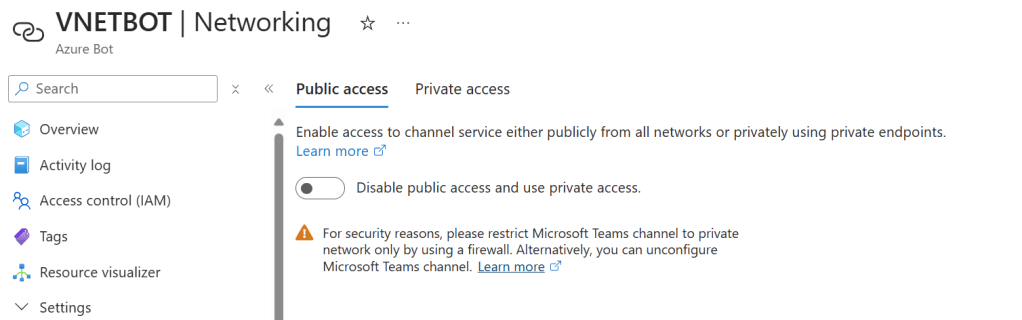
Here we set the API management URI for the Bot backend API. That we created earlier. We have also disabled the Public Access to the Azure Bot.
Using Private Endpoints for Azure Bot Service
To allow secure communication between the bot framework and the Azure Bot Service, I created private endpoints for two essential sub-resources:
- Bot Sub-Resource: This endpoint ensures secure connectivity from the bot to Azure Bot Service.
- Token Sub-Resource: This endpoint enables the bot to securely communicate with Azure’s authentication resources for token generation.
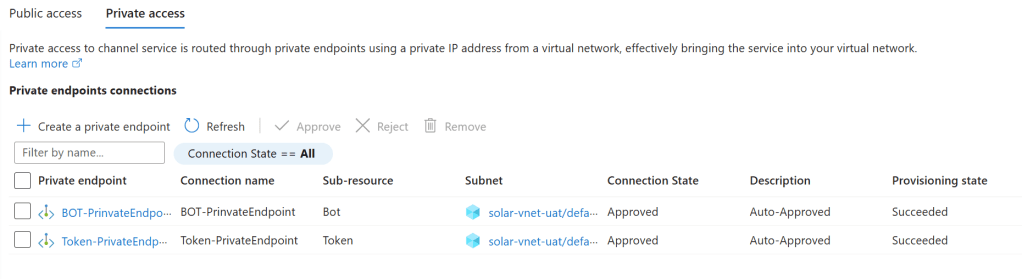
By configuring these private endpoints, the Azure Bot Service becomes reachable only within the VNet. This level of isolation secures communication between the bot’s backend in Azure Container Apps and Azure Bot Service without needing public internet access.
Deploying the Bot in Microsoft Teams
Once the backend, networking, and API access were secured, the next step was to integrate the bot with Microsoft Teams. I created a Teams app with a manifest file that configures the bot’s permissions, name, and description. The manifest enables easy installation of the bot within Teams, allowing users to interact with it in a familiar interface.
In order to do that we will have to create a Teams app, I will go with the minimal work here. We need an Icon for the app and a manifest xml file.
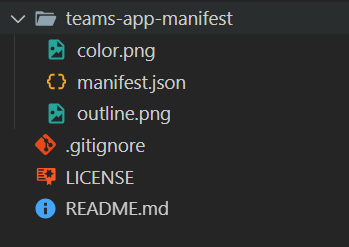
The manifest file looks somewhat below:
{
    "$schema": "https://developer.microsoft.com/json-schemas/teams/v1.16/MicrosoftTeams.schema.json",
    "manifestVersion": "1.16",
    "version": "1.5",
    "id": "<Your BOT App registration ID>",
    "packageName": "nl.octolamp.teams.vnet.bot",
    "developer": {
      "name": "Moim Hossain",
      "websiteUrl": "https://www.moimhossain.com",
      "privacyUrl": "https://www.moimhossain.com",
      "termsOfUseUrl": "https://www.moimhossain.com"
    },
    "name": {
      "short": "VnetBot-Demo",
      "full": "VnetBot-Demo"
    },
    "description": {
      "short": "Build a Microsoft Teams bot in C# with Bot Framework v4 and Facebook auth.",
      "full": "This sample demonstrates how to create a Microsoft Teams bot in C# using Bot Framework v4, featuring Facebook authentication and various integration capabilities."
    },
    "icons": {
      "outline": "outline.png",
      "color": "color.png"
    },
    "accentColor": "#3F487F",
    "staticTabs": [
      {
        "contentUrl": "https://www.moimhossain.com",
        "entityId": "statictab",
        "name": "Bot Info",
        "scopes": [
          "team",
          "personal"
        ]
      }
    ],
    "configurableTabs": [
      {
        "configurationUrl": "https://www.moimhossain.com",
        "canUpdateConfiguration": false,
        "scopes": [
          "team",
          "groupchat"
        ]
      }
    ],
    "bots": [
      {
        "botId": "Your bot app registration ID",
        "isNotificationOnly": false,
        "scopes": [
          "team",
          "personal",
          "groupchat"
        ]
      }
    ],
    "composeExtensions": [
      {
        "botId": "Your bot app ID",
        "canUpdateConfiguration": true
      }
    ],
    "permissions": [
      "identity",
      "messageTeamMembers"
    ]
  }
We can now Zip this folder (manifest file and icon files in it) and deploy that zip as a package to the Team’s app registration.

This will register our bot as an App in Teams.

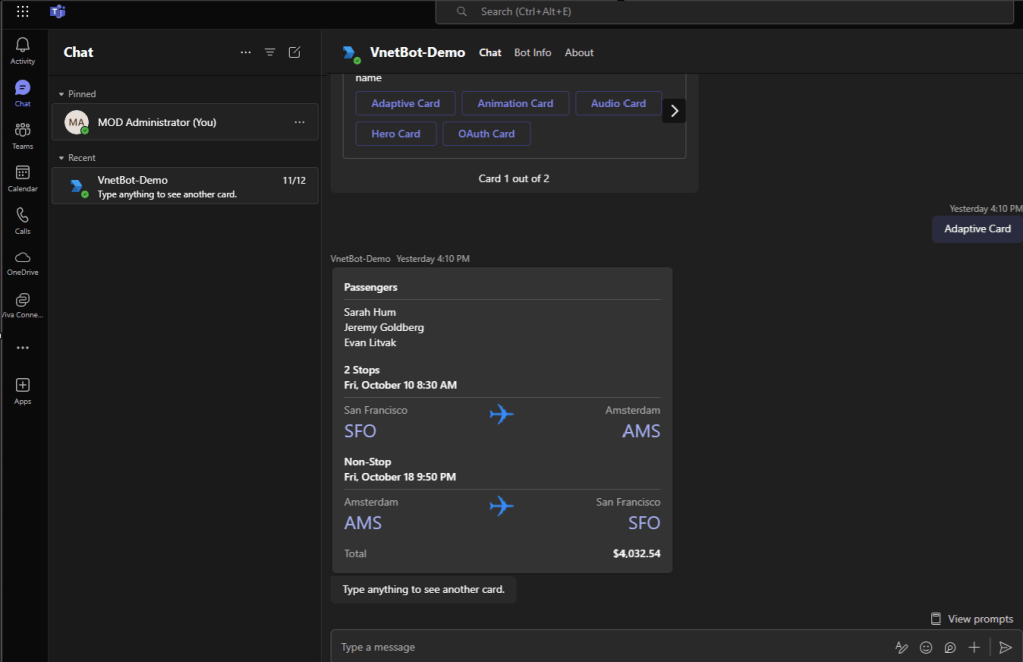
This Teams app can be deployed across the organization, giving teams a secure and interactive experience with the bot. Now we can chat with the bot from Teams:
Conclusion
This use case demonstrates a secure approach to building and deploying an Azure Bot with Microsoft Teams, leveraging Azure services like Container Apps, API Management, and private endpoints. This setup provides robust security by isolating the bot’s backend and controlling network access, making it suitable for use cases that demand high levels of data protection. By following similar practices, developers can create secure bot solutions that harness the power of Azure’s cloud-native tools and integrate smoothly with Teams.

 Reverse Engineering
Hi Moim,
Thank you for the detailed article!
Doesn’t your Azure API management service require authentication using a subscription key? If so, how did you pass it from the Bot Service?
LikeLike
Aditya, I’m not using subscription in the API indeed. As the Bot Service provides access token, I think subscription requirement can be relaxed.
LikeLike
Hello Moim,
I’m not sure if I’m understanding correctly. If I disable public access it looks like I cannot use any channels. What I understood from the documentation was only direct line communication works when creating private endpoints and disabling public access.
https://ibb.co/C0myVcr – Here’s the image of the channels being inactive.
Am I understanding incorrectly? Somehow Microsoft Teams is enabled even though the public access is disabled.
LikeLike